Running TFLite Models in Android Flutter Projects Using the flutter_litert Plugin
- 01 Apr, 2026
In a previous note (Summary of YOLO Model Workflow in Android Flutter Projects), I detailed the complete workflow of running a YOLOv8 model exported from the Ultralytics project within an Android Flutter project using the flutter_vision plugin.
However, using the flutter_vision plugin comes with numerous limitations. For instance, it only supports a few specific YOLO models and is restricted to TFLite model files exported exclusively via Ultralytics’ export interface. Consequently, if you want to run models other than YOLO on Android, flutter_vision is no longer a viable option.
Therefore, to convert a custom model into the TFLite format and run it within an Android app, a more flexible approach is needed. This process involves two steps:
- Converting the custom model’s
.ptfile into the TFLite format. This is covered in detail in How to Convert PT Models to TFLite/LiteRT Format?. - Running the converted TFLite model file within your Android Flutter project while bypassing the limitations imposed by the
flutter_visionplugin. This is the problem addressed in this article.
flutter_litert vs tflite_flutter
When running TFLite models in Android Flutter projects, two plugins are commonly used: flutter_litert and tflite_flutter.
tflite_flutter: This is the most classic and established TFLite plugin in the Flutter community. Most online resources regarding running AI models on Android use this plugin. It directly wraps the C-based TFLite interpreter using Dart FFI. While community-maintained forks still exist (such astflite_flutter_plus), its configuration and community maintenance are fragmented, making it less recommended for new projects.flutter_litert: This plugin was introduced as a modern successor in response to Google’s official rebranding and upgrade of the TensorFlow Lite brand to LiteRT. It is currently the recommended plugin that aligns with Google’s latest AI roadmap, essentially serving as an evolution oftflite_flutterdesigned to resolve the maintenance pain points of the older plugin. Therefore, it is strongly recommended to useflutter_litertin new projects.

At its core, the flutter_litert plugin acts as a Hardware Abstraction Layer (HAL) wrapper operating at the Flutter (Dart) layer. Its general characteristics include:
- Underlying Mechanism: Instead of rewriting the model’s inference logic in Dart, the plugin uses Dart FFI (Foreign Function Interface) to very lightly bind Google’s pre-compiled C++ LiteRT Native binary library (
.sofiles). The advantage, of course, is that it leverages the maximum execution efficiency of underlying C/C++ languages. - Zero-Copy Philosophy: Its core idea is to allocate a contiguous buffer in memory (such as
Float32List), populate data using Dart, and let the C++ engine directly read this physical memory for model matrix operations, avoiding performance overhead caused by cross-language data passing.
Overall Architecture and Data Flow of the flutter_litert Plugin
The diagram below illustrates the overall architecture and data flow when using the flutter_litert plugin to run AI models in an Android Flutter project:
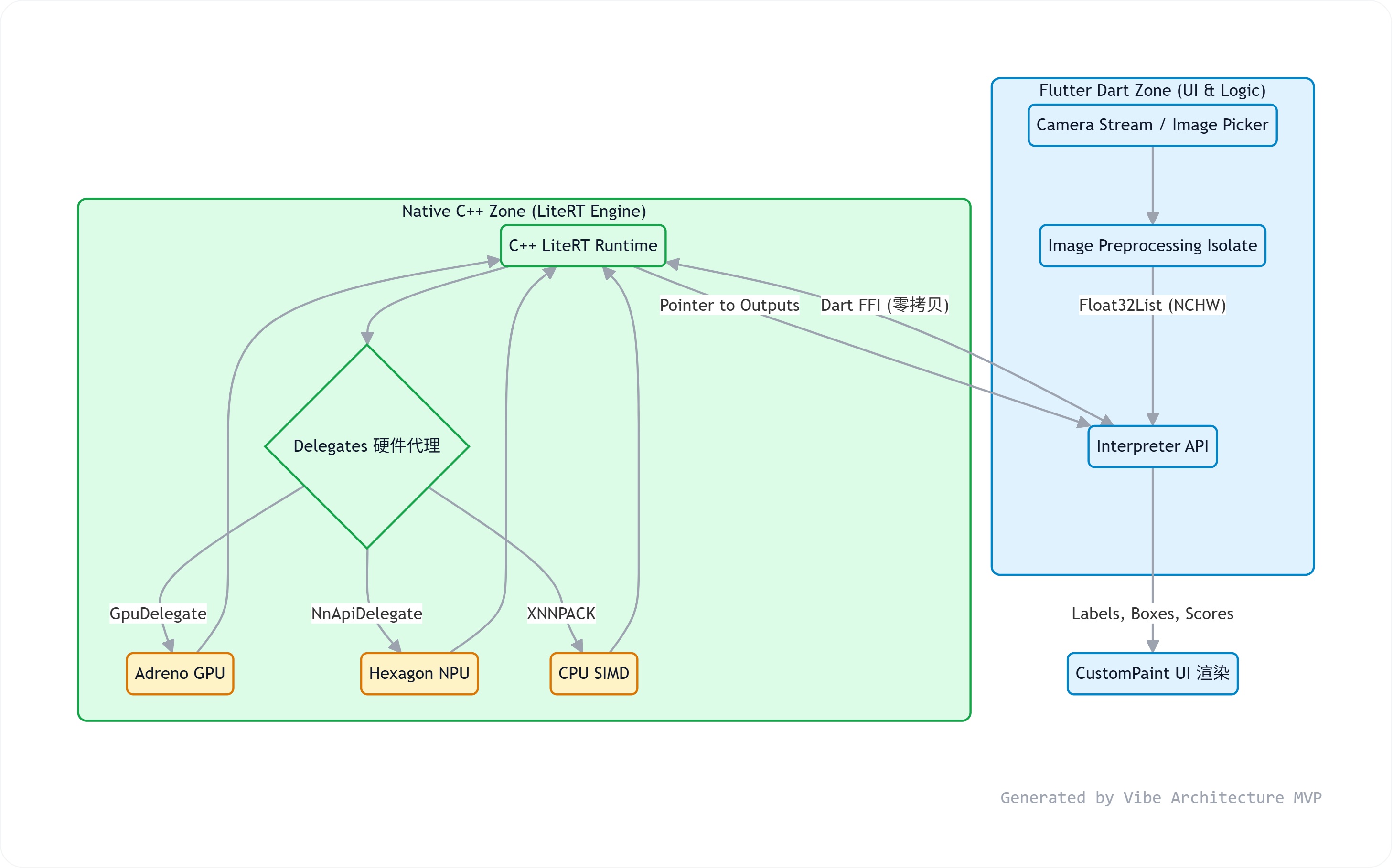
From the overall flow chart above, the data movement during the model’s forward inference can be broadly divided into four layers and stages.
- Acquisition and Scheduling Layer: Flutter Dart Zone (User Space)
This part runs inside the Flutter Dart Virtual Machine, acting equivalently to a user-space application in the operating system. Its primary task is to coordinate the timing between frontend UI rendering and model detection results, as well as image preprocessing.
Of course, before the model can detect and recognize images, it must first be loaded into memory. Models and their label files are usually bundled within the app’s assets, so assets-related APIs are used to load the model:
final labelsData = await rootBundle.loadString('assets/models/yolo_custom/label.txt');
 final labelsList = labelsData.split('\n').where((s) => s.trim().isNotEmpty).toList();
 final modelByteData = await rootBundle.load("assets/models/yolo_custom/yolov8s_wi8_afp32.tflite");
 final modelBytes = modelByteData.buffer.asUint8List();
When the phone’s camera is open, it pushes high-resolution YUV420 raw stream data to the main thread at a frame rate of 30/60fps and displays it on the screen. Typically, smartphone computing power cannot support detecting every single frame at such a high frame rate—perhaps only completing 10 frames per second. In this scenario, image capture by the camera and image processing by the model are asynchronous. Therefore, they must be processed across two separate threads: the main thread refreshes and displays real-time images according to the camera’s capture frame rate, while model image processing must be handled in an independent Isolate (similar to a high-priority background thread) to perform YUV-to-RGB conversion, image scaling, and other preprocessing steps before sending the data to the flutter_litert plugin for recognition and detection.
As is well known, before sending images into models like YOLO for forward inference, a series of preprocessing steps must be applied to meet the model’s dimensional requirements for input image data. Thus, for each YUV420 frame retrieved from the camera (potentially with a resolution of 1280x720), the preprocessing pipeline must include at least: resizing to 640x640, YUV-to-RGB conversion, image normalization to the 0-1.0 range, and rearranging data format to NCHW (PyTorch models default to NHWC data layouts).
Once preprocessing is complete, the input image is ready, and the next step is to call the flutter_litert plugin’s API to process it:
final inTensor = interpreter!.getInputTensors().first;
inTensor.data = inputBuffer!.buffer.asUint8List();
interpreter!.invoke()- Cross-Language Function Interface and Memory Zero-Copy Mechanism
During the interpreter’s forward inference execution on input image data, image data must pass from the app layer’s Dart language to the model inference code written in C++. To efficiently transmit large chunks of image memory data across these two languages, it is optimal to use memory pointers for a zero-copy image transfer mechanism. This is where Dart FFI (Foreign Function Interface) shines, allowing Dart to directly share physical memory pointers with underlying C/C++, avoiding repeated copying of large memory blocks between callers and callees.
As shown in the diagram above, both the function calls to the interpreter written in Dart and the final return of model execution results from the underlying C++ language back to the user-space Dart layer leverage the memory zero-copy mechanism provided by Dart FFI.
- Underlying Computing Execution: Native C++ Zone
This is where the model actually executes forward inference using C/C++.
In the article How to Understand the Core Concepts and Workflow of TFLite/LiteRT?, key concepts and execution workflows of running AI models under the Android TFLite/LiteRT framework were summarized in detail. Google implemented a LiteRT Runtime environment using C++ (essentially the interpreter), which handles the execution and operator scheduling of TFLite/LiteRT format models on Android.
During specific operator scheduling and execution, the interpreter further uses delegates to decide which hardware dispatches specific operations:
- GpuDelegate (Adreno GPU): Suitable for handling large-scale parallel floating-point matrix multiplications in models.
- NnApiDelegate (Hexagon NPU): A dedicated NPU designed for the Android Neural Networks API. If a model is fully quantized to INT8, running it on an NPU is exceptionally fast with extremely low power consumption.
- XNNPACK (CPU SIMD): The lowest-level fallback solution. If a specific operator is not supported by the GPU/NPU, execution falls back to the CPU using vector instructions. This is often the root cause of lag due to slow model computation speeds.
For specific execution and scheduling logic, please refer to How to Understand the Core Concepts and Workflow of TFLite/LiteRT? and How to Handle the Opset Version and Compatibility Issue in TFLite?.
- Model Return and Rendering
Following the forward inference executed by the LiteRT Runtime, the C++ engine updates the memory state. Through the Dart FFI mechanism, the app-layer Dart code captures the signal that model execution has completed. At this point, the user-layer application can unpack tensor information (such as classes, bounding boxes, and confidence scores) generated by models like YOLO/RT-DETRv2 from the contiguous memory block according to the output data structure and type. After post-processing these tensors (such as applying NMS for YOLO), the results are handed back to Flutter’s GPU rendering pipeline to map coordinates based on screen proportions and draw the final target bounding boxes lightweightly onto the canvas.
final outTensor = interpreter!.getOutputTensors().first;
final rawOut = outTensor.data.buffer.asFloat32List(outTensor.data.offsetInBytes, outTensor.data.lengthInBytes ~/ 4);
outputBuffer!.setAll(0, rawOut);

final results = _postProcessSmart(   // Perform post-processing on model detection results
								outputBuffer!, labels!, 640, outShape[1], outShape[2],
                wActual, hActual, isChannelFirst,
                data.confThreshold, data.iouThreshold
              );
 // Finally, draw boxes based on the results returned from post-processing
GPU/NPU Acceleration Settings for Model Inference
As mentioned above, during forward inference calculations performed by the LiteRT Runtime environment, the interpreter selects corresponding delegate execution options based on operator version compatibility, primarily including GPU, NPU, and CPU SIMD options. So, when running AI models using the flutter_litert plugin within the Flutter framework, how do you configure GPU/NPU hardware acceleration for these operators?
This is configured via InterpreterOptions. The specific code is as follows:
final loadData = message.data as _LoadData;  // Model file
labels = loadData.labels;
final options = InterpreterOptions()..threads = 4; // Use 4 threads when running in CPU mode
if (Platform.isAndroid) options.addDelegate(GpuDelegateV2());// Prioritize GPU acceleration on Android

interpreter = Interpreter.fromBuffer(loadData.modelBytes, options: options); // Assign model file and acceleration options to the interpreter
The configuration logic in the code above is that during operator scheduling, the interpreter prioritizes GpuDelegateV2. If an operator is not supported on the GPU, it falls back to compute on the CPU using 4 threads.
In the latest version 2.0.11 of the flutter_litert plugin (as of April 2026), the acceleration modes supported by InterpreterOptions include:
- GPU Delegates (Graphics Processing Unit): Suitable for most models, especially CNN-style networks. Advantages: fast speed and relatively low power consumption. Disadvantages: unsupported operators may fall back to CPU.
GpuDelegateV2(): Targeted at the Android platform, backed by OpenGL ES 3.1 / Vulkan APIs.GpuDelegate(): Targeted at the iOS platform, backed by Apple’s Metal API.
- Core ML Delegate (iOS): Targeted at iOS devices running iOS 11+ with an A12 chip or higher. Advantage: optimal performance on Apple devices; Disadvantage: iOS only.
- On iOS,
CoreMLDelegate()should be tried first, falling back toGpuDelegate()if unsupported.
- On iOS,
- XNNPACK Delegate (CPU Optimization): Used when there is no GPU or the GPU is unsupported. Advantage: good compatibility, faster than standard CPU; Disadvantage: still much slower than a GPU.
Note: You can only configure a single acceleration option via options.addDelegate. Calling addDelegate multiple times will result in only the last one taking effect. Therefore, in practice, you should use a try...catch approach to select the most suitable acceleration option:
if (Platform.isAndroid) {
	  print("Attempting GPU acceleration...");
	  try {
			options.addDelegate(GpuDelegateV2());
	    accelMode = "GPU";
	    print("GPU acceleration enabled");
	  } catch (e) {
	    print("GPU not available, falling back to XNNPack");
	    options.addDelegate(XNNPackDelegate());
	    accelMode = "XNNPack";
	  }
}