Setting Up the Android Studio + Flutter Full-Stack Development Environment and Important Notes
- 23 Mar, 2026
This article provides a comprehensive guide on setting up a full-stack development environment based on Android Studio and Flutter on Windows. The process itself is not overly complex, but due to the numerous concepts involved and network restrictions in mainland China when accessing Google servers, several points require attention during the initial setup and testing. This record serves as a complete reference for future development.
Downloading the Flutter SDK and Setting Environment Variables
Download the Flutter SDK from a mirror source in mainland China. Refer to the Flutter SDK Archive List, select the Stable Channel for Windows, and download. The download speed will be much faster than using the official default source:
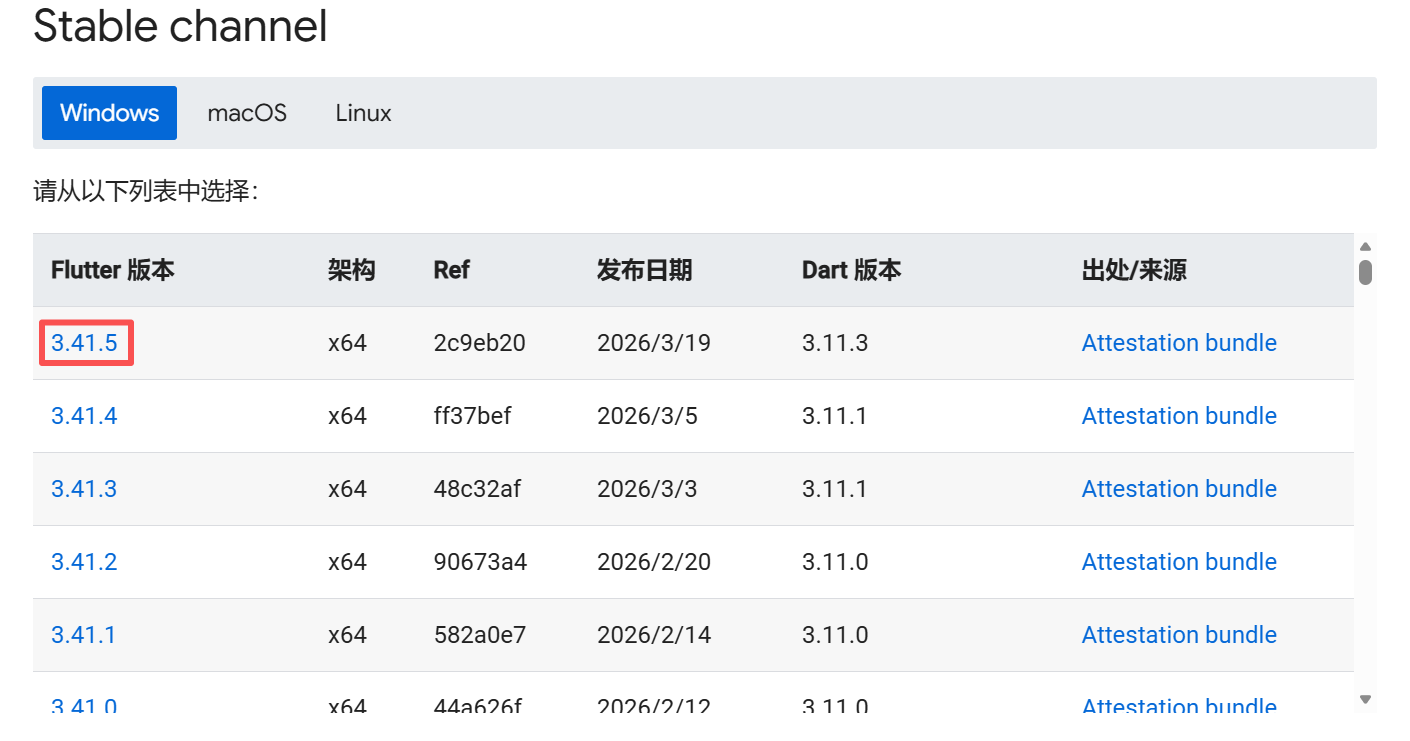
No installation is required after downloading. Simply extract the Flutter SDK zip archive to a fixed directory and add the path of the SDK’s bin directory to your system’s Path environment variable.
Additionally, due to network conditions in China, you need to configure environment variables to modify the address for the Flutter community. Add two user environment variables: PUB_HOSTED_URL and FLUTTER_STORAGE_BASE_URL.
export PUB_HOSTED_URL=https://pub.flutter-io.cn
export FLUTTER_STORAGE_BASE_URL=https://storage.flutter-io.cn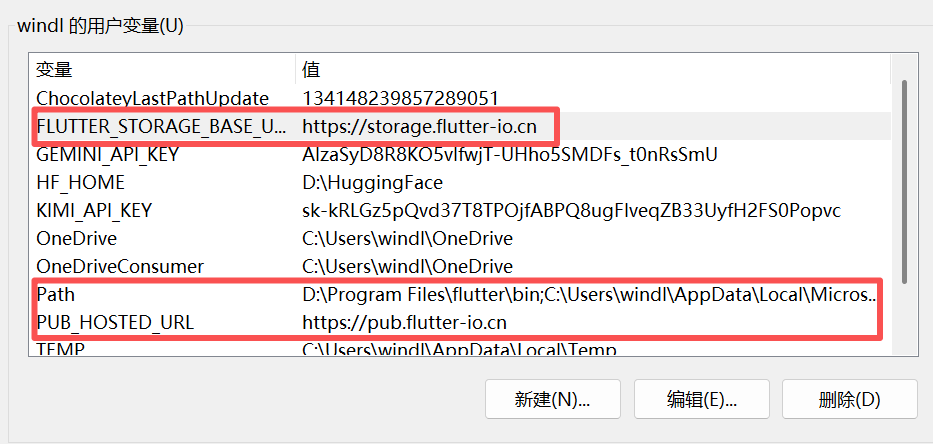
At this point, you should be able to check the current Flutter SDK version in the Windows terminal using flutter --version:
(base) PS C:\windows\System32> flutter --version
Building flutter tool...
Running pub upgrade...
Resolving dependencies... (1.6s)
Downloading packages... (4.6s)
Got dependencies.
Flutter 3.41.5 • channel stable • https://github.com/flutter/flutter.git
Framework • revision 2c9eb20739 (5 days ago) • 2026-03-17 16:14:01 -0700
Engine • hash c1db59d880ca73dd86cec08a6663f287522d9f39 (revision 052f31d115) (5 days ago) • 2026-03-17 20:29:11.000Z
Tools • Dart 3.11.3 • DevTools 2.54.2
Installing and Configuring the Android SDK
Download and install the latest version of Android Studio from the Chinese official website: Download Android Studio and App Tools - Android Developers.
After Android Studio is installed, the first launch requires online installation of tools such as the SDK and NDK. These tool packages are often several gigabytes in size. Therefore, during the initial SDK installation in Android Studio, choose the Custom setup option, configure the HTTP Proxy first, and then proceed with the SDK installation. Otherwise, downloading the SDK can be frustratingly slow. A list of commonly usable proxies is provided below:
Huawei Mirror: https://developer.huawei.com/repo/
Douban Mirror: https://mirrors.douban.com/android/sdk/
Tencent:    https://mirrors.cloud.tencent.com/AndroidSDK/
Alibaba:    https://mirrors.aliyun.com/android.googlesource.com/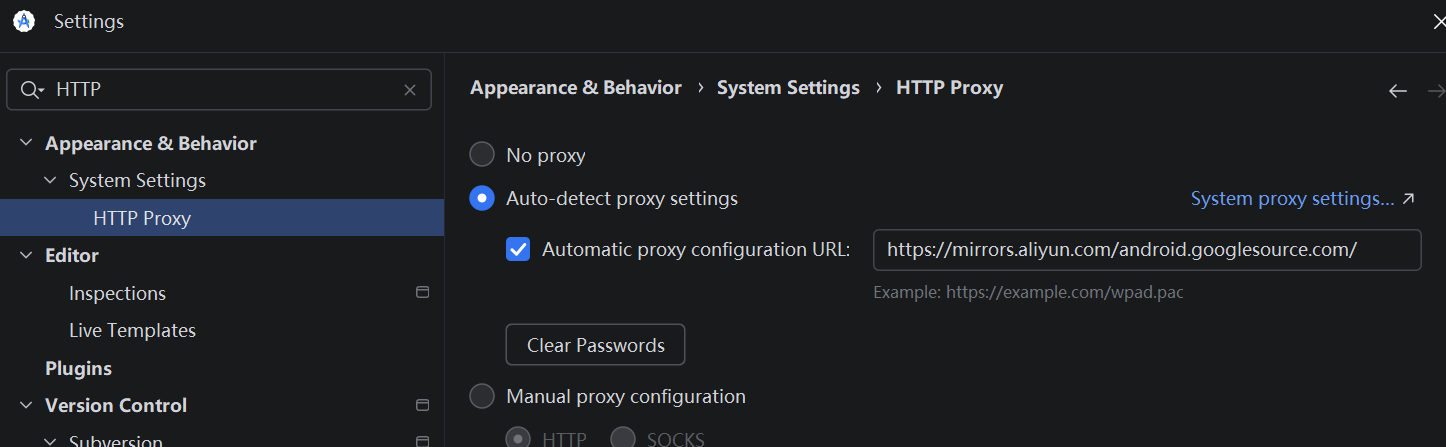
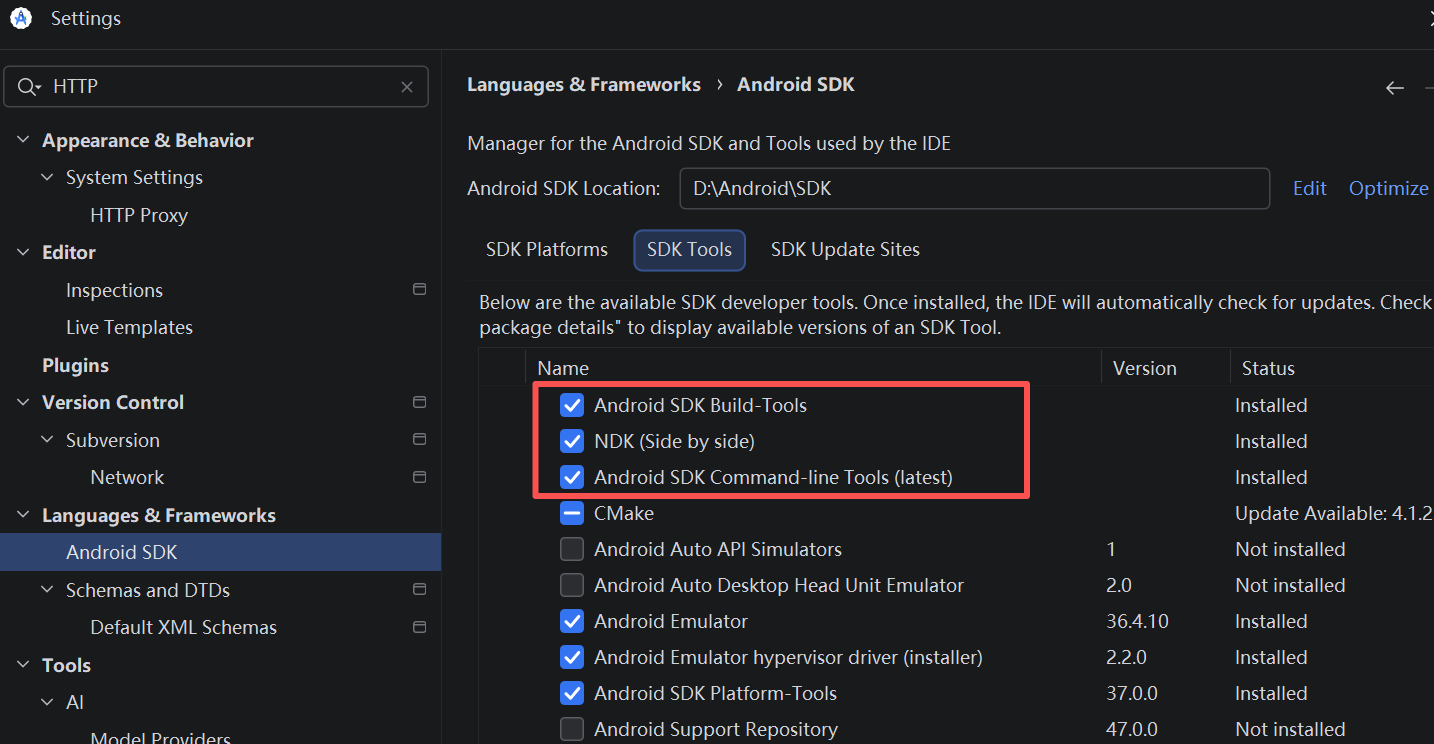
By default, Android Studio does not install the Android SDK Command-line Tools during the SDK installation process, but Flutter requires them to manage mirrors. Therefore, you must install the command-line tools manually. Furthermore, since I plan to develop audio/video and AI model packages/libraries involving C/C++ via Flutter, I also need to install the Android NDK package.
Thus, after the SDK installation is complete, go to the Settings page to additionally install the following SDK packages:
In addition, you need to install the two essential plugins for Flutter development in Android Studio: Flutter and Dart.
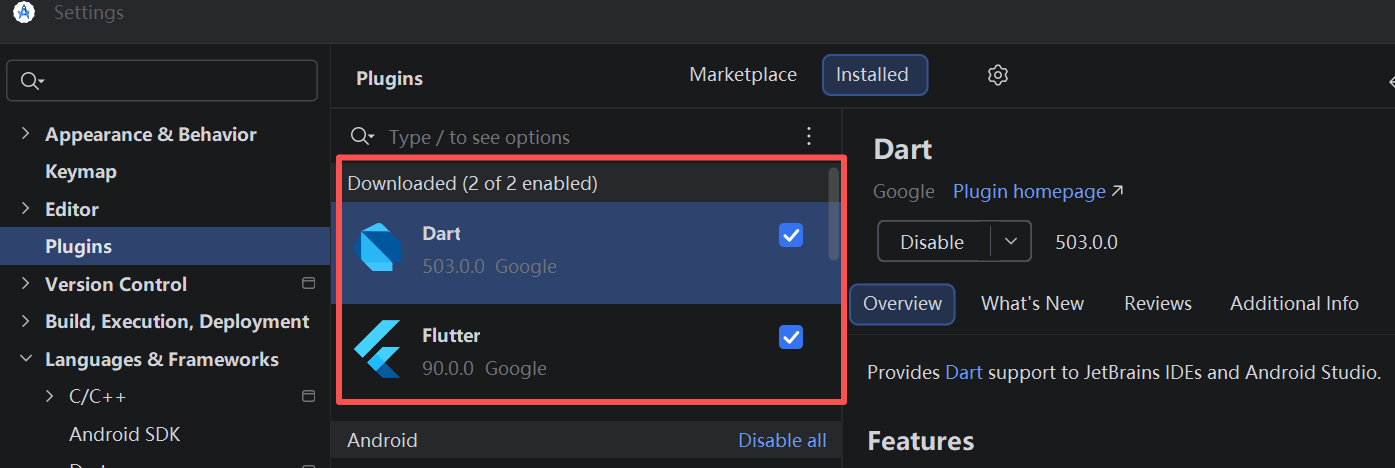
At this point, the Flutter SDK, Android Studio, its associated SDKs, and the Flutter plugins are all fully installed.
Environment Testing and Verification
Before you start developing with Flutter in Android Studio, you can use the flutter doctor command in the terminal to verify that your environment is correctly configured. Before doing this, run flutter doctor --android-licenses and press y multiple times to accept the Android licenses. The final output of the flutter doctor command will look similar to this (since I am not focusing on web development, I ignore the error regarding the Chrome browser; if web development is needed, simply install the Chrome browser):
(base) PS C:\windows\system32> flutter doctor
Flutter assets will be downloaded from https://storage.flutter-io.cn. Make sure you trust this source!
Doctor summary (to see all details, run flutter doctor -v):
[√] Flutter (Channel stable, 3.41.5, on Microsoft Windows [版本 10.0.26200.8037], locale zh-CN)
[√] Windows Version (Windows 11 or higher, 25H2, 2009)
[√] Android toolchain - develop for Android devices (Android SDK version 36.1.0)
[X] Chrome - develop for the web (Cannot find Chrome executable at .\Google\Chrome\Application\chrome.exe)
    ! Cannot find Chrome. Try setting CHROME_EXECUTABLE to a Chrome executable.
[√] Visual Studio - develop Windows apps (Visual Studio 生成工具 2022 17.14.25 (January 2026))
[!] Proxy Configuration
    ! NO_PROXY is not set
[√] Connected device (3 available)
[√] Network resources

! Doctor found issues in 2 categories.
Configuring Gradle Mirrors
We are not quite done yet. Compiling and packaging Android APKs in Android Studio also requires Gradle, which involves downloading yet another large set of tools.
During the Android app building process, the Android build script gradle defaults to downloading various dependency packages from Google and MavenCentral. Domestic networks in China tend to get stuck during this download phase, so you need to change the source address for downloading dependency packages.
A quick online search usually reveals solutions like manually modifying the gradle/wrapper/gradle-wrapper.properties file to change the default gradle.org mirror, or adjusting allprojects in the android/build.gradle file. While straightforward, the drawback is that you have to manually edit these two files for every new project you create. If you forget, it will attempt to download dependencies from overseas networks, taking an extremely long time.
My goal is to apply these changes globally to the environment so that every newly created Flutter project automatically redirects download requests to domestic mirrors when building an Android app, rather than reaching out to external central servers. The specific approach is to create an init.d directory inside your Gradle installation directory (for example, my Gradle installation path is D:\Android\.gradle, and the default path is usually the .gradle folder under the user directory on drive C), and place a file named mirror.init.gradle.kts inside it with the following content:
gradle.settingsEvaluated {
    dependencyResolutionManagement {
        // Allows adding repositories in projects and init scripts to resolve conflicts
        repositoriesMode.set(RepositoriesMode.PREFER_SETTINGS)

        repositories {
            maven { url = uri("https://maven.aliyun.com/repository/google") }
            maven { url = uri("https://maven.aliyun.com/repository/public") }
            maven { url = uri("https://maven.aliyun.com/repository/jcenter") }
            maven { url = uri("https://repo.huaweicloud.com/repository/maven/") }
            maven { url = uri("https://storage.flutter-io.cn/download.flutter.io") }
            google()
            mavenCentral()
        }
    }
}

gradle.projectsLoaded {
    rootProject.allprojects {
        tasks.withType<org.gradle.api.tasks.wrapper.Wrapper> {
            val originalUrl = distributionUrl
            if (originalUrl.contains("services.gradle.org/distributions")) {
                val zipName = originalUrl.substringAfterLast("/")
                val mirrorUrl = "https://mirrors.cloud.tencent.com/gradle/$zipName"
                logger.lifecycle("✅ Vibe Optimizer: Redirecting Wrapper to $mirrorUrl")
                distributionUrl = mirrorUrl
            }
        }
    }
}
This way, every time Gradle loads, it will automatically replace the URLs of its related download servers with domestic mirror server addresses, drastically speeding up download times.
Debugging
With this, the entire setup process is finally complete. The process itself isn’t complicated; the main bottleneck is the inconvenience of accessing external networks from within China, as downloading from overseas servers can be maddeningly slow. Furthermore, tools like Android Studio, SDK, NDK, Flutter, and Gradle all require downloading numerous packages to complete the environment setup. Fortunately, thanks to numerous domestic mirror servers acting as relays, once this setup and environment are established, subsequent development becomes much smoother.
Next comes the classic debugging phase: modify code directly in the terminal using CLI development tools like Gemini CLI or AI IDEs like Trae, and then use the golden combination of flutter devices + flutter run + r to debug and run your code. During regular development, there is no need to keep Android Studio open; you only need to use Android Studio to manage and update your SDKs.