YOLOv5 Source Code Analysis: Detect.py
- 05 Nov, 2025
This article provides a detailed analysis of the source code of the detect.py script used to execute inference tasks in YOLOv5, helping you fully understand the entire process from parameter passing and parsing to inference execution and result output.
The detect.py script in the YOLOv5 source code is specifically designed to perform inference tasks after a model has been trained. In other words, it utilizes the trained model to make predictions on new data such as images, videos, and real-time streams, identifying and marking targets of interest within them, and saving the results.
Typical Ways to Invoke detect.py
When using the detect.py script to perform basic inference tasks, the two most important parameters to pass are --weights, which specifies the model’s .pt file, and --source, which specifies the target task for inference (whether it’s an image, video, or media stream).
Detecting images (or a directory) and displaying the results:
python detect.py --weights best.pt --source path/to/images --view-img
python detect.py --weights best.pt --source path/to/directory --view-img
Detecting a video file, saving the results and detection data:
python detect.py --weights best.pt --source video.mp4 --conf-thres 0.5 --save-txt --save-confUsing a UVC camera and detecting only specific classes:
python detect.py --weights best.pt --source 0 --classes 0 2 --view-imgWhen executing detect.py as shown above, the generated result files will be saved in the runs/detect/exp directory of the YOLOv5 source code (this can be modified via the --project and --name parameters).
Parameter List for the detect.py Script
Similar to several other execution scripts in the YOLO codebase, detect.py uses the ArgumentParser class from the argparse package to manage its numerous runtime parameters. When calling the script, you first need to pass the corresponding option arguments.
The chart below organizes all the parameter options supported by the detect.py script, their default values, and functional explanations for each parameter:
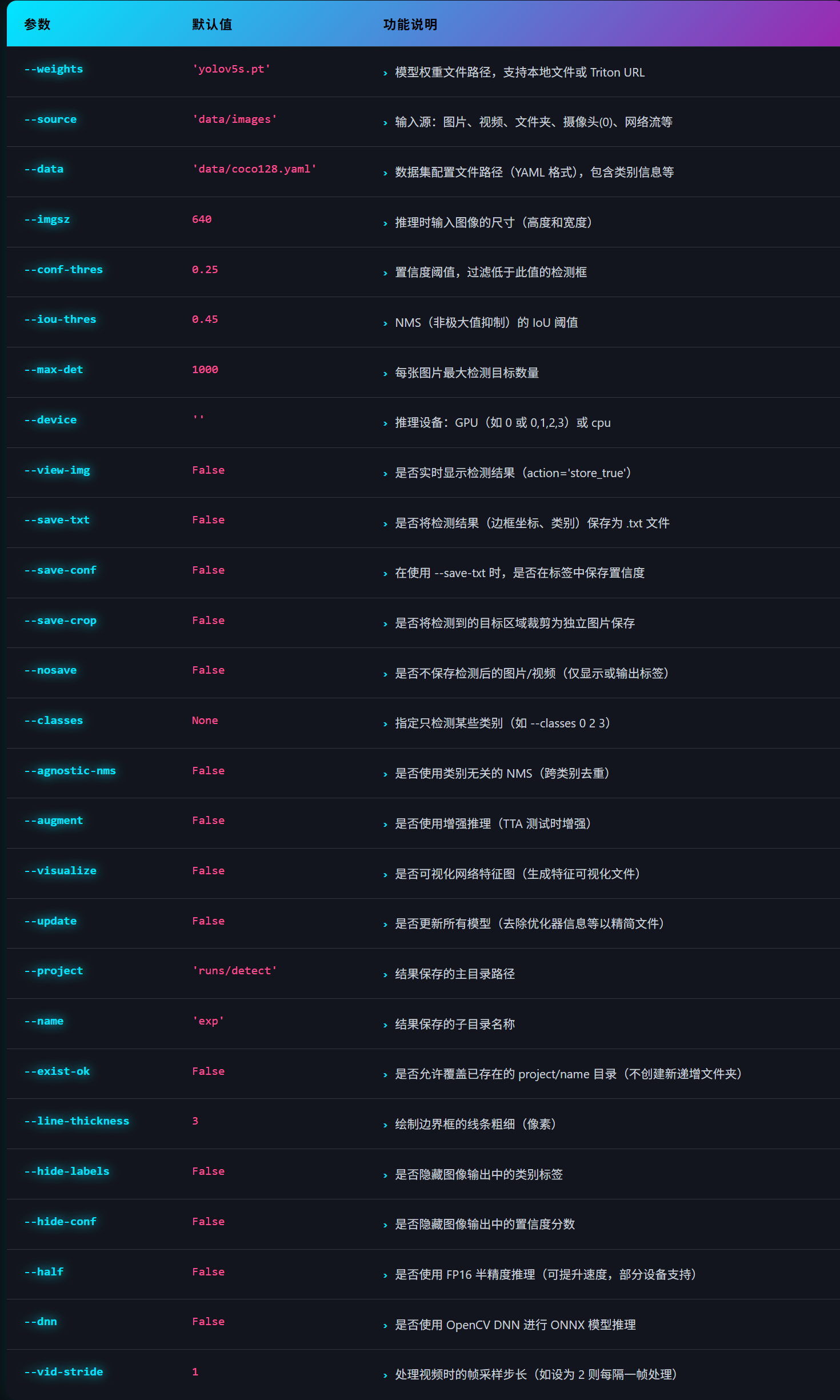
Detailed explanations for some of the less intuitive parameters from the operation list above are as follows:
- Note that in the vast majority of cases, there is no need to pass the
--dataparameter. This is because the model file (.pt) passed via the--weightsparameter already contains the classification information necessary for object detection and recognition. If you forcibly use thenameslist from a specified YAML configuration file via--data, it will override the category information embedded within the model file, which can instead cause confusion. Therefore, the default and recommended approach is to directly use the classification information built into the.ptfile. In this case, the model uses its own training-time category definitions, ensuring correct and concise behavior. - The
--dnnparameter: In certain scenarios, you may need to use the DNN module in OpenCV (rather than the default PyTorch operators) to execute the inference computation pipeline. This is typically done to integrate with existing C++ applications developed using OpenCV for better execution performance. You can attempt to pass the--dnnparameter during inference so that the underlying calculations use OpenCV’s DNN instead of PyTorch. Of course, the prerequisite for passing this parameter is ensuring that the provided model file is in ONNX format; other model file formats do not support the--dnnparameter. - The
--visualizeparameter: This indicates that during inference, feature maps extracted by various network layers of the YOLOv5 backbone can also be saved. By observing and analyzing these feature maps from different layers, you can diagnose issues during inference and gain a more intuitive understanding of the workflow and principles of convolutional neural networks. - The
--augmentparameter: This corresponds to the TTA (Test Time Augmentation) operation during YOLOv5 inference. As is well known, augmentation during the training process effectively expands the training dataset, enhances model generalization, and prevents overfitting by applying random scaling, cropping, and color jitter to the original images. During inference, for a given test image, multiple images are generated using a similar logic (such as scaling and flipping), fed into the model for inference to produce multiple detection results, and then mapped back to the original image coordinate space. Finally, steps like NMS are used to integrate these results, yielding more stable and accurate detections. Naturally, enabling this TTA operation involves multiple forward passes for the same image, which will undoubtedly significantly increase the per-image inference time. - The
--updateparameter: Thebest.ptfile generated after completing custom model training also contains information such as optimizer states, training epochs, and recent evaluation results, which are meaningless for final deployment. By passing the--updateparameter,detect.pyremoves this information during prediction, generating a cleaner model version that retains only model weights, model architecture definitions, and necessary metadata (such as class names). This makes the model file leaner and more suitable for final deployment and sharing. Of course, for abest.ptfile you trained yourself, you can also use thestrip_optimizer('runs/train/exp/weights/best.pt')command to slim down the model. Note that cleaning optimizer information from the model file using the--updateparameter is an irreversible operation, and the processed model file cannot be directly used to resume training or continue interrupted training. Therefore, be sure to keep a backup of the original training weights before executing this.
Code Analysis of the Inference Execution Workflow
There are mainly only two functions in the detect.py script: parse_opt is used to implement parameter parsing, and run is used to execute the specific inference process.
The overall inference process executed by the run function is illustrated in the diagram below:
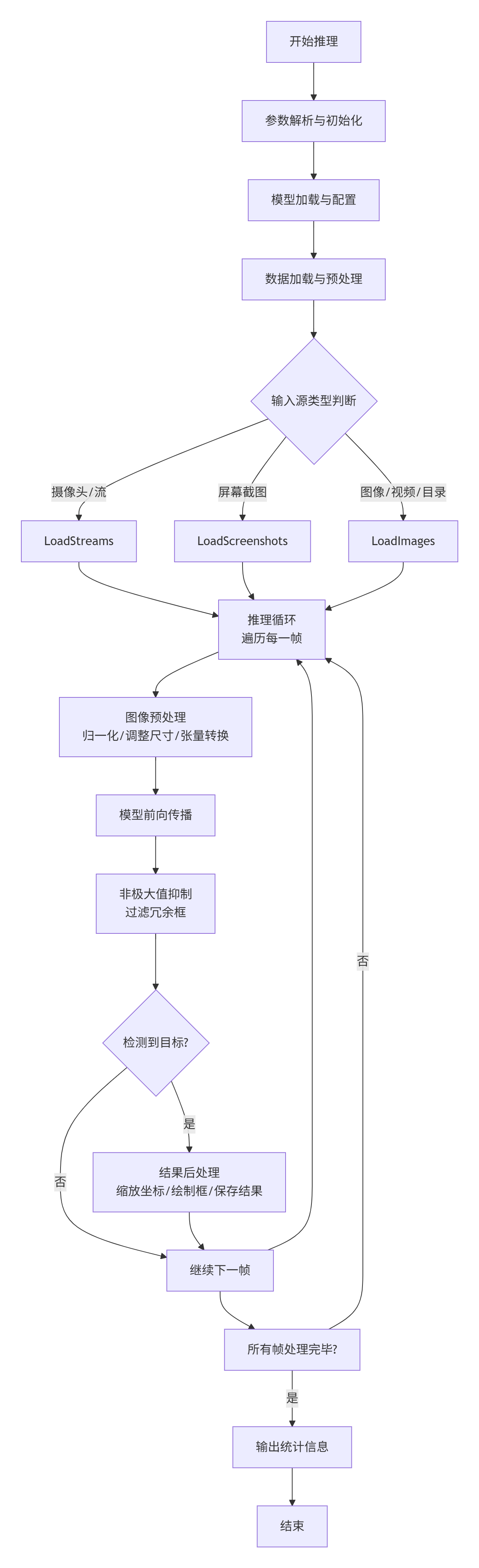
Below is a summary of the key parts of the detect.py script’s execution workflow from a code implementation perspective.
Model Loading
The code for loading the model is shown below:
# Load model
    device = select_device(device) # Create the corresponding torch device based on the --device parameter
    model = DetectMultiBackend(weights, device=device, dnn=dnn, data=data, fp16=half)
    stride, names, pt = model.stride, model.names, model.pt
    imgsz = check_img_size(imgsz, s=stride)  # Check if the image size is a multiple of stride (32)
First, the select_device function is used based on the --device argument to choose the corresponding device type among CPU, CUDA, and Apple’s Metal Performance Shaders (MPS). It sets the environment variables for model inference based on the device type and creates a corresponding torch.device object. Subsequent model inference flows will run on this torch.device.
DetectMultiBackend handles the model loading process. The reason for using this separate function to load the model is that this inference pipeline supports a variety of different model file formats, not limited to PyTorch-generated .pt files:
#   PyTorch:                weights = *.pt
        #   TorchScript:                    *.torchscript
        #   ONNX Runtime:                   *.onnx
        #   ONNX OpenCV DNN:                *.onnx --dnn
        #   OpenVINO:                       *_openvino_model
        #   CoreML:                         *.mlpackage
        #   TensorRT:                       *.engine
        #   TensorFlow SavedModel:          *_saved_model
        #   TensorFlow GraphDef:            *.pb
        #   TensorFlow Lite:                *.tflite
        #   TensorFlow Edge TPU:            *_edgetpu.tflite
        #   PaddlePaddle:                   *_paddle_model
The DetectMultiBackend function automatically parses the model file type based on the model file name or URL passed via the --weights parameter, and then loads it into the system for use in the subsequent inference pipeline.
Creating the Dataloader Based on the Input Source
Next, a corresponding dataloader is created based on the type of input source specified by the --source parameter. The subsequent inference process continuously reads frames of images from this dataloader to perform inference and save the results.
The input sources passed via --source can generally be divided into three types:
- webcam: PC webcams, or media stream URLs specified by prefixes such as
http,https,rtmp, andrtsp. - screenshot: Screenshot images of the current computer screen.
- others: Ordinary images, video files, and directories.
# Dataloader
    bs = 1  # batch_size
    if webcam:
        view_img = check_imshow(warn=True)  # Check if the current environment can display images
        dataset = LoadStreams(source, img_size=imgsz, stride=stride, auto=pt, vid_stride=vid_stride)
        bs = len(dataset)
    elif screenshot:
        dataset = LoadScreenshots(source, img_size=imgsz, stride=stride, auto=pt)
    else:
        dataset = LoadImages(source, img_size=imgsz, stride=stride, auto=pt, vid_stride=vid_stride)
    vid_path, vid_writer = [None] * bs, [None] * bs
For the three types of sources mentioned above, LoadStreams, LoadScreenshots, and LoadImages are respectively called to return a dataloader class object. The subsequent inference process pulls each frame of image from this object to perform inference:
for path, im, im0s, vid_cap, s in dataset:
	...... # Execute the inference workflow for a single image frame per iteration
Pay attention to the bs variable in the code above. This variable represents the batch size, which is the number of images fed into the model for inference at a time:
- For webcams, the batch size equals the number of simultaneous cameras or video streams being processed (passed as a list of cameras in the
--sourceparameter). - For screenshots, the batch size is fixed to 1, indicating that one frame of screen capture is processed at a time.
- For the
LoadImagesclass corresponding to regular file paths, the batch size is also fixed to 1, meaning predictions are made on one image file or one video frame through the model at a time.
Inference Workflow
The inference for each image frame can be divided into three sub-processes: image preprocessing, inference, and NMS filtering of the inference results.
Before executing inference, the model is warmed up, and three Profile objects are created to track the execution time of each sub-process:
# Run inference
    model.warmup(imgsz=(1 if pt or model.triton else bs, 3, *imgsz))  # Warmup the inference hardware GPU/CPU with a few dummy forward passes
    # Create three Profile objects to record inference times at different stages
    seen, windows, dt = 0, [], (Profile(device=device), Profile(device=device), Profile(device=device))
The model has been loaded in a previous stage. The purpose of this warmup operation is to pass 2–3 dummy images through the model to execute a few forward operations before running the actual inference. This allows the model’s parameters and runtime state to reach an optimal condition prior to real inference. Of course, if you are only inferring a single image using detect.py, this warmup holds little significance. However, when inferring continuous video streams, executing a warmup before starting inference puts the hardware in a prime state, which helps accelerate the processing of continuous video streams.
Additionally, by creating the dt array containing three Profile(device=device) objects, we can subsequently record the execution times of the three sub-processes in the inference pipeline.
Below is the code for the execution flow of the three sub-process steps in inference, each using a Profile to measure its execution time:
with dt[0]: # Preprocessing for the inference image
            im = torch.from_numpy(im).to(model.device)
            im = im.half() if model.fp16 else im.float()  # uint8 to fp16/32
            im /= 255  # 0 - 255 to 0.0 - 1.0
            if len(im.shape) == 3:
                im = im[None]  # expand for batch dim
            if model.xml and im.shape[0] > 1:# OPENVINO model file and batch size greater than 1
                ims = torch.chunk(im, im.shape[0], 0)

        # Inference
        with dt[1]: # Call model for inference
            visualize = increment_path(save_dir / Path(path).stem, mkdir=True) if visualize else False
            if model.xml and im.shape[0] > 1: # OPENVINO model file and batch size greater than 1
                pred = None
                for image in ims:
                    if pred is None:
                        pred = model(image, augment=augment, visualize=visualize).unsqueeze(0)
                    else:
                        pred = torch.cat((pred, model(image, augment=augment, visualize=visualize).unsqueeze(0)), dim=0)
                pred = [pred, None]
            else:
                pred = model(im, augment=augment, visualize=visualize)

        # NMS
        with dt[2]: # Perform NMS processing on inference results
pred = non_max_suppression(pred, conf_thres, iou_thres, classes, agnostic_nms, max_det=max_det)- Image preprocessing: Primarily converts the image format to a PyTorch tensor, copies it to the torch device, and normalizes all pixel data by dividing by 255.
- Inference process: For standard
.ptfiles or ONNX format models, this essentially calls themodel()operation to execute a single forward pass. - NMS process: Applies non-max suppression to the raw inference results
predgenerated in the previous step.
Parsing Inference Results
The final step of the inference pipeline filters the results through non_max_suppression() and returns the final object detection results pred.
The data structure of pred is a PyTorch tensor containing batch size (i.e., the bs variable mentioned above) number of det data structures. A det is also a tensor representing the detection results for a single image. The format of det is (n, 6), indicating that n objects were detected in the image, with each object corresponding to a 6-element tuple described in order as follows:
x1,y1: The top-left coordinates of the detected object.x2,y2: The bottom-right coordinates of the detected object.conf: The confidence score of the detection result.cls: The predicted class.
The code for the subsequent post-processing stage is relatively simple. It mainly parses pred after NMS and the det data structures it contains to obtain the coordinate locations, confidence scores, and class predictions of all detected objects across the images, which are then drawn onto the images or saved to external files.
# Process predictions
        for i, det in enumerate(pred):  # per image - process detection results for each image
	        ...
			# Create an Annotator object to draw detection boxes on the image
            annotator = Annotator(im0, line_width=line_thickness, example=str(names))
            if len(det): # len(det) represents the number of detected objects
                # Rescale boxes from img_size to im0 size - convert detection box coordinates from model input size to original image size
                det[:, :4] = scale_boxes(im.shape[2:], det[:, :4], im0.shape).round()

                # Print results - count the number of detected objects for each class in the image
                for c in det[:, 5].unique():
                    n = (det[:, 5] == c).sum()  # detections per class
                    s += f"{n} {names[int(c)]}{'s' * (n > 1)}, "  # add to string

                # Write results
                for *xyxy, conf, cls in reversed(det): # Sequentially obtain the coordinate location, confidence, and class of each detection result
                    c = int(cls)  # integer class
                    label = names[c] if hide_conf else f"{names[c]}"
                    confidence = float(conf)
                    confidence_str = f"{confidence:.2f}"
The above code first loops through the pred structure, with each iteration handling the detection results det for a single image. For each image’s detection results, you can sequentially retrieve the detected object’s coordinates, confidence score, and class. Of course, because the model’s input resolution is fixed at 640x640, the coordinates output by det are also based on this resolution. To render these detection coordinates onto the original image, scale_boxes must be used to map the model’s output coordinates back to the original image dimensions.