A Summary of Concepts: BIOS, UEFI, MBR, GPT, GRUB, EFI, etc.
- 21 Jun, 2024
BIOS and UEFI
BIOS: Basic Input Output System.
UEFI: Unified Extensible Firmware Interface.
To put it simply, whether it is BIOS or UEFI, they are essentially the computer’s bootloader. Moreover, this bootloader is not stored on the hard drive, but is instead solidified in the CMOS or EEPROM memory on the computer’s motherboard. This makes perfect sense: otherwise, if you used a new hard drive or formatted the old one, the bootloader would cease to exist and the computer would not be able to boot. Therefore, the BIOS and UEFI firmware must be stored on other non-volatile memory on the motherboard. This ensures that no matter how you mess with the hard drive, the computer can at least perform basic self-tests and boot normally.
- From this perspective, BIOS/UEFI is more like the Rom Loader on various embedded processors, rather than U-Boot. The Rom Loader is hardened inside the embedded processor chip. When the chip powers on, the Rom Loader is the first program to execute, and it is responsible for loading U-Boot (stored in Flash) into RAM to run.
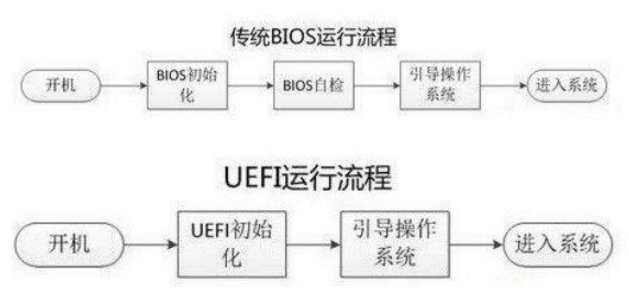
BIOS and UEFI are actually the first programs executed after the computer powers on. Their primary functions include:
- Initializing the CPU itself and setting up interrupt vectors;
- Initializing various hardware peripherals;
- Performing Power-On Self-Test (POST), outputting prompt messages based on POST results, and deciding whether to proceed with system boot;
- Loading and running the operating system image or the second-stage bootloader.
Actually, BIOS had been the default bootloader since the birth of the PC, until it was gradually replaced by UEFI after 2010. However, because BIOS was used for so long, the name “BIOS” is deeply ingrained, so we still often use “BIOS” to refer to a computer’s bootloader.
UEFI eventually replaced BIOS simply because the design of BIOS could no longer keep up with the times:
- BIOS can only support hard drives up to 2TB, while UEFI theoretically supports up to the ZB (Zettabyte) level.
- UEFI boots faster because BIOS must run in the CPU’s 16-bit real mode, while UEFI can work in the CPU’s 32-bit or 64-bit mode, resulting in faster execution.
- BIOS has a maximum runtime memory space of only 1MB, which prevents BIOS from having highly complex and powerful features. For example, BIOS cannot support GUI graphical interfaces and mouse operations, which UEFI easily supports.
- UEFI supports Secure Boot and network booting, neither of which is available in BIOS.
For these reasons, BIOS was gradually phased out and replaced by UEFI after 2010. However, the fundamental functions of UEFI and BIOS are largely the same.
Another point worth noting is that UEFI is designed with backward compatibility for BIOS. Therefore, UEFI includes a Legacy mode. If UEFI is configured to use Legacy mode, its execution process is identical to that of BIOS.
MBR and GPT
MBR: Master Boot Record, a partition table scheme based on the main boot record of a hard drive.
GPT: GUID Partition Table, a partition table scheme based on Globally Unique Identifiers.
The concepts of MBR and GPT are closely related to the partition structure of a hard drive. During the boot process, whether using UEFI or BIOS, the system ultimately needs to initialize the hard drive and read its partition structure to understand how the drive is partitioned, the size and location of each partition, and where the OS boot partition resides. This requires the hard drive to store its partition information in a fixed location according to the structure required by BIOS or UEFI. This allows BIOS/UEFI to successfully locate and parse the drive partition information during boot, loading and executing the operating system correctly.
These two types of bootloaders, BIOS and UEFI, each define their own hard drive partition structure. Specifically, the partition structure defined by BIOS is MBR, while the UEFI specification defines the GPT structure.
MBR: Used in Conjunction with BIOS
In the MBR partition scheme, a fixed-size MBR partition is placed at the very beginning of the hard drive. This partition is the Master Boot Record of the hard drive, which defines the partition structure of the entire drive and the location of the boot partition. However, the MBR partition specification can only support hard drives up to 2TB in size (since BIOS only supports the MBR partition scheme, this is why BIOS can only support up to 2TB drives). It also supports a maximum of 4 primary partitions, or 3 primary partitions + 1 extended partition. If more partitions are needed, logical drives can be created within the extended partition.
When MBR is used for disk partition management, Sector 0 of the hard drive is used to store the MBR information. This entire Sector 0 is 512 bytes, divided into four parts: the bootstrap code, disk signature, disk partition table, and boot signature (end marker).
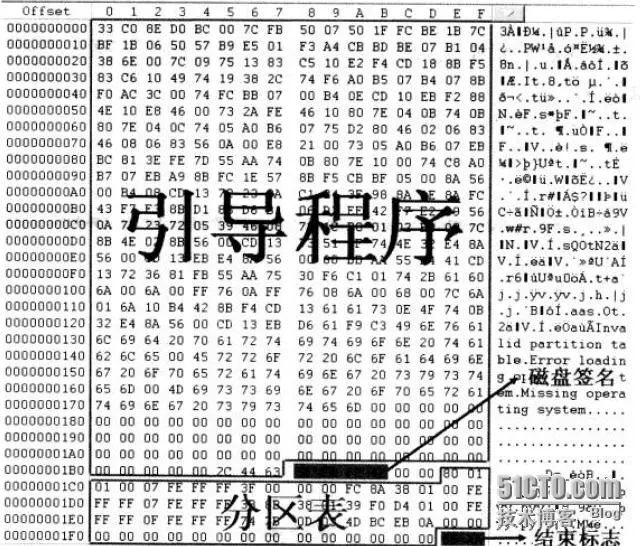
- Bootstrap code: Occupies the first 440 bytes of the MBR, responsible for loading and starting the operating system.
- Disk signature: 4 bytes, a label written after Windows formats the hard drive.
- Partition table: 64 bytes, stores the partition details of this hard drive.
- Boot signature (end marker): The last two bytes of the MBR, fixed at
0x55,0xAA.
For the BIOS boot mode, the BIOS program is responsible for loading the MBR record on Sector 0 of the hard drive, and then handing CPU control over to the MBR boot code. The MBR boot code reads and parses the partition table information, loads the operating system image from the boot partition, and boots the OS.
GPT: Used in Conjunction with UEFI
The GPT partition scheme is a disk partition structure defined by the UEFI specification. Unlike the MBR partition structure used by BIOS, the GPT partition structure does not limit the number or size of partitions, though Windows imposes a limit of a maximum of 128 GPT partitions.
Compared to the MBR structure which uses only Sector 0 to store the entire partition table, the GPT partition structure is more complex:

- Protective MBR: The first sector at the beginning of the GPT partition structure is a Protective MBR, used for backward compatibility with traditional MBR partition schemes.
- GPT Header: Contains the signature, the size of the GPT header, the Logical Block Address (LBA) of the backup GPT header, the LBA and size of the GPT partition table, the number of partitions, the size of each partition entry, and CRC check values. After reading and parsing the GPT header, UEFI can locate the GPT partition table and parse the partition information.
- GPT Partition Table: This is the core part of the GPT structure. It defines the layout of GPT partitions across the entire disk, including the partition type/GUID, physical address, size, and attributes of each partition.
- User Partitions: This section is the actual storage space occupied by each partition, whose locations and sizes are defined in the partition table.
- Backup GPT Partition Table and GPT Header: This is a backup of the GPT Header and GPT Partition Table, used to recover the system in case the primary GPT Header or partition table is corrupted. This makes GPT much safer than MBR, which has no backup mechanism; if the master boot record in the first sector of MBR is damaged, normal booting cannot be restored.
Notably, to work with UEFI, the user partition section of a GPT disk must contain an ESP (EFI System Partition), which is formatted as a FAT file system. This partition stores the actual secondary bootloader files used to load and bootstrap the operating system. During the boot process, UEFI reads and parses the disk’s GPT header and GPT partition table, allowing it to correctly identify this ESP. UEFI identifies whether a partition is an ESP based on the partition’s GUID. The GUID of an ESP is fixed as: C12A7328-F81F-11D2-BA4B-00A0C93EC93B. Once the ESP is recognized, UEFI loads it as a FAT file system and reads the secondary bootloader file inside, such as \BOOT\BOOTX64.EFI. The subsequent OS boot process is handled by this secondary bootloader.
GRUB
If you are installing Linux as a standalone OS, or setting up a dual-boot system alongside Windows, installing GRUB at the end of the Linux installation is inevitable.
So, what exactly does GRUB do on top of MBR and GPT to enable dual-boot or multi-boot capabilities?
BIOS + MBR Structure
As mentioned earlier, under the BIOS+MBR scheme, the BIOS loads the bootloader code contained in the first 446 bytes of Sector 0 into memory and executes it. Therefore, this 446-byte bootloader is responsible for loading the OS image. When Windows is installed, the first 446 bytes of Sector 0 are written with ntldr (or bootmgr), which bootstraps Windows. If you install Linux and use GRUB2 as the bootloader, the GRUB2 Stage 1 binary is written into these first 446 bytes during the final stages of the Linux installation.
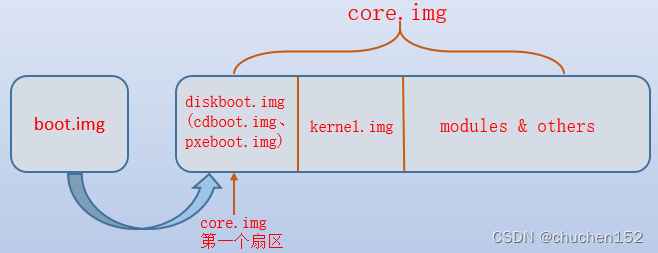
Of course, 446 bytes of space is far too small to include all of GRUB’s features. Consequently, the GRUB boot process is divided into two stages:
- Stage 1: The code written to the 446 bytes of Sector 0 represents the first stage. Its sole purpose is to locate and load the actual GRUB bootloader main program, which is the GRUB2 Stage 2 program located in the OS boot partition. Due to the 446-byte limit, this Stage 1 binary cannot include file system drivers. Therefore, the sector location of the GRUB2 Stage 2 program is hardcoded directly into the Stage 1 code in the MBR. The image of GRUB2 Stage 1 corresponds to
boot.img, which is written to Sector 0 of the disk during installation. - Stage 2: Once loaded by Stage 1, it parses the
/boot/grub2/grub.cfgconfiguration file. Based on this configuration, it displays a multi-OS boot selection menu, or directly loads the Linux kernel and initramfs. From there, the kernel takes over the remaining boot process. The image of GRUB2 Stage 2 corresponds tocore.img, located in the/boot/grub2/i386-pcdirectory.
UEFI + GPT Structure
As summarized in the GPT partition structure section above, once the UEFI firmware starts, it parses the GPT partition structure and finds a special ESP partition based on its dedicated GUID. This partition is formatted as a FAT32 file system. The default system bootloader is the /efi/boot/bootx64.efi file under this partition (or bootia32.efi for 32-bit systems).
Under the UEFI+GPT scheme, when GRUB2 is installed on the hard drive, a subdirectory named after the operating system (e.g., ubuntu below) is created under the ESP partition. The corresponding GRUB2 .efi files and configuration files are placed inside it. At the same time, the GRUB2 .efi file is copied to the /EFI/Boot directory and renamed to bootx64.efi. Thus, the next time UEFI boots, it locates the ESP partition, finds the bootx64.efi file in the Boot directory, and runs it to load the OS image or display the multi-OS selection menu, allowing the user to select which system to boot.
pavelhan@ThinkPad-X260-9fe388ac:/dev$ sudo ls /mnt/EFI/Boot -l
总计 1872
-rwx------ 1 root root 960472  4月 18 23:15 bootx64.efi
-rwx------ 1 root root  88296  4月 18 23:15 fbx64.efi
-rwx------ 1 root root 860824  4月 18 23:15 mmx64.efi
pavelhan@ThinkPad-X260-9fe388ac:/dev$ sudo ls /mnt/EFI/ubuntu -l
总计 4332
-rwx------ 1 root root     108  4月 18 23:15 BOOTX64.CSV
drwx------ 5 root root    4096  4月 23 08:53 grub
-rwx------ 1 root root     105  4月 18 23:15 grub.cfg
-rwx------ 1 root root 2594696  4月 18 23:15 grubx64.efi
-rwx------ 1 root root  860824  4月 18 23:15 mmx64.efi
-rwx------ 1 root root 960472 4月 18 23:15 shimx64.efi- As described above, the installation and execution of GRUB2 in the ESP partition is actually more complex. GRUB2 copies multiple
.efifiles under/EFI/ubuntuin the ESP partition, and the one that actually replaces thebootx64.efifile isshimx64.efi. Therefore, after GRUB2 is installed, UEFI will ultimately find and runbootx64.efi(which is actuallyshimx64.efi) underEFI/Boot, which then chain-loadsgrubx64.efiunderEFI/ubuntu. This process involves Secure Boot signing and security validation mechanisms, running the Microsoft-signedshimx64.efifirst, which then verifies and loads the actual GRUB imagegrubx64.efi.
References
- Introduction and Usage of BIOS and UEFI - Tencent Cloud Developer Community (tencent.com)
- Detailed Explanation of MBR and GPT Partition Structures - CSDN Blog
- BIOS and UEFI Boot Processes - LARRY1024 - CNBlogs (cnblogs.com)
- What is the Difference Between GRUBX64.EFI and SHIMX64.EFI in Linux? - ITPUB Blog