How to Convert PT Models into TFLite/LiteRT Formats?
- 29 Apr, 2026
Previously, when attempting to run Ultralytics’ YOLOv8 model on Android phones (refer to Summary of YOLO Model Execution Workflow in Android Flutter Projects), the model could be directly exported into ONNX, TFLite, and other formats using the YOLO model’s built-in export interface. However, what if the model we encounter during development lacks an official export interface? How can we convert a model file in .pt format into TFLite for easy deployment on Android devices?
Therefore, this article aims to address this question: How can a generic PyTorch model weight file (.pt) be converted into a TFLite model file (.tflite) that can run on Android edge devices?
Google’s AI Edge Torch / LiteRT
To solve the problem stated above, a popular solution involves the following pipeline:
- PyTorch (.pt) → ONNX: ONNX is a universal format for model exchange, so this conversion step frees the model file from PyTorch’s framework restrictions.
- ONNX → TensorFlow (SavedModel): This is a translation process from the ONNX ecosystem language to the TensorFlow ecosystem, ensuring that the target platform (i.e., Google mobile app) correctly recognizes the operators in the model file.
- TensorFlow → TFLite: This is somewhat similar to
stripandobjcopyunder Linux. This step performs constant folding, operator streamlining, and most importantly, quantization (converting default FP32 weight parameters into INT8) to accommodate the compute and storage limitations of mobile CPUs/NPUs.
However, the traditional PT -> ONNX -> TF -> TFLite path is not a flawless solution. Because PyTorch adheres to NCHW (Channel First) while TensorFlow defaults to NHWC (Channel Last), conversion tools in this traditional pipeline aggressively insert Transpose operators to preserve mathematical equivalence. During execution on mobile CPUs/GPUs, this causes frequent memory rearrangements, severely slowing down inference speed.
Consequently, Google introduced the AI Edge Torch tool in April 2024 to enable direct conversion from PT model files to TFLite format models. This tool utilizes torch.export (a core feature of PyTorch 2.x) to directly capture the computational graph and map it to TFLite operators. More importantly, it directly aligns data formats during model conversion, eliminating a massive amount of unnecessary Transpose operators and avoiding the heavy memory rearrangements required during subsequent inference.
By 2025, Google rebranded its mobile AI ecosystem: TensorFlow Lite was renamed to LiteRT. This change was primarily driven by the perception that the name “TensorFlow Lite” was too tightly coupled to the TensorFlow framework. The current trend in the AI model ecosystem is that PyTorch dominates research and training, while TFLite dominates mobile deployment. Therefore, to attract PyTorch users, Google emphasizes that the TFLite runtime is a universal edge AI deployment tool, not exclusively for TensorFlow. Thus, the new brand name is LiteRT (Lite Runtime).
Environment Setup
To convert a PyTorch model into TFLite/LiteRT format on a PC, you primarily depend on two packages: litert-torch and ai-edge-litert.
- litert-torch: Corresponds to the former
ai-edge-torch, responsible for mapping PyTorch operators to LiteRT. - ai-edge-litert: Corresponds to the former
tflite-runtime, which is the inference engine responsible for executing generated.tflite(LiteRT) files on Android or PC.
As of now (March 2026), the APIs for litert-torch and ai-edge-litert are still changing rapidly, making their environmental requirements very strict. Therefore, you must create an independent Python environment and install the specified version of PyTorch in advance; otherwise, package conflicts can easily occur during the installation of these two packages. After careful verification, the currently stable environment setup steps are as follows (installed within a Windows WSL2 environment):
conda create -n litert-env python=3.11
conda activate litert-env

pip install torch==2.9.1 torchvision==0.24.1 torchaudio==2.9.1 --index-url https://download.pytorch.org/whl/cpu
pip install litert-torch ai-edge-litert
pip install opencv-python
Note: The environment for model conversion and PC-side inference must be installed in a Linux environment. When I tried setting it up directly in Windows, I consistently encountered the error below. Judging from the error message,litert-torchdepends onai-edge-tensorflow, and**ai-edge-tensorflow** is currently primarily released in Google’s Nightly/Experimental repositories, with native support for the Windows platform lagging far behind. Therefore, it is best to install this conversion tool in Linux or a Windows WSL2 environment.
ERROR: Could not find a version that satisfies the requirement ai-edge-tensorflow==2.21.0.dev20251110 (from litert-torch) (from versions: none)
ERROR: No matching distribution found for ai-edge-tensorflow==2.21.0.dev20251110
Model Conversion
Once the environment is successfully set up, you can begin converting the pre-trained .pt model file under PyTorch into the TFLite format. Here, I directly use the yolov8s.pt file from the Ultralytics/YOLO project for conversion testing.
import torch
import litert_torch as lt
from ultralytics import YOLO

model = YOLO("yolov8s.pt")
pt_model = model.model
pt_model.eval()

# Warm up inference using dummy data
with torch.no_grad():
    dummy_input = torch.randn(1, 3, 640, 640)
    model.predict(dummy_input)

class Wrapper(torch.nn.Module):
    def __init__(self, m):
        super().__init__()
        self.m = m

    def forward(self, x):
        # Explicitly inform the converter to output only the first tensor [1, 84, 8400]
        # and ensure eval logic is maintained inside forward
        res = self.m(x)
        return res[0] if isinstance(res, (list, tuple)) else res

# Perform FP32 conversion
wrapped_model = Wrapper(pt_model).eval()
sample_input = (torch.randn(1, 3, 640, 640),)
edge_model = lt.convert(wrapped_model, sample_input)

tflite_path = "yolov8s_fp32.tflite"
edge_model.export(tflite_path)
The model export script above successfully exports the FP32 model file. While FP32 offers the highest precision, due to its heavy consumption of memory bandwidth and storage space (for the YOLOv8s model, the converted file size is 44MB), it is certainly not the optimal performance choice for edge CPUs/NPUs. Therefore, quantization processing is required next.
Quantization
For YOLO models with a built-in export interface, quantization is a straightforward task—you simply configure the export format to fp16, int8, etc. However, after using litert_torch to complete model exportation, the APIs for quantizing TensorFlow Lite model files changed drastically. As a result, almost all online reference code for quantization fails to correctly or successfully complete quantization in the latest litert-torch.
Reviewing the README file from https://github.com/google-ai-edge/litert:
I have a PyTorch model…
- Goal: Convert a model from PyTorch to run on LiteRT.
- Path1 (classic models): Use the LiteRT Torch Converter to transform your PyTorch model into the
.tfliteformat, and use AI Edge Quantizer to optimize the model for optimal performance under resource constraints. From there, you can deploy it using the standard LiteRT runtime.- Path2 (LLMs): Use LiteRT Generative Torch API to reauthor and convert your PyTorch LLMs into Apache format, and deploy it using LiteRT LM.
As seen here, for newer LiteRT implementations, quantization requires a new tool called ai-edge-quantizer (https://github.com/google-ai-edge/ai-edge-quantizer). This tool is a next-generation utility built by Google specifically for INT8/INT4 weight compression on LiteRT models. In modern Edge AI concepts, simple FP16 file size truncation is no longer prevalent; Weight INT8 + Activation FP32 (known as Dynamic Quantization) is the ultimate champion for balancing speed, size, and accuracy on edge devices like mobile phones.
import os
import ai_edge_quantizer
from ai_edge_quantizer import recipe

input_model_path = "yolov8s_fp32.tflite" # Your previously exported 44MB base model
output_model_path = "yolov8s_dynamic_int8.tflite"

if not os.path.exists(input_model_path):
    print(f"❌  Input model not found: {input_model_path}")
    exit(1)

print("Vibe Check: Loading AI Edge Quantizer...")

try:
    # 1. Initialize the quantizer with the FP32 model
    quantizer = ai_edge_quantizer.quantizer.Quantizer(input_model_path)

    # 2. Load the dynamic quantization recipe
    # Explanation: wi8 = Weight INT8 (weights converted to 8-bit integers, drastically reducing file size)
    #              afp32 = Activation FP32 (activations kept as 32-bit floats to ensure detection accuracy)
    quantizer.load_quantization_recipe(recipe.dynamic_wi8_afp32())

    # 3. Execute quantization and export (method chaining)
    print("Applying Dynamic INT8 Quantization Recipe...")
    quantizer.quantize().export_model(output_model_path)

    # 4. Verify size changes
    old_size = os.path.getsize(input_model_path) / (1024 * 1024)
    new_size = os.path.getsize(output_model_path) / (1024 * 1024)

    print(f"🚀 Success! Quantized model saved to: {output_model_path}")
    print(f"📉 Size reduction: {old_size:.2f} MB -> {new_size:.2f} MB")

except Exception as e:
    print(f"❌  Quantization Failed: {e}")
The quantization workflow above selects the wi8-afp32 mode (where weight parameters are quantized to INT8 while activation values remain FP32). The resulting quantized model file is only about 11MB, which is 1/4 of the size of the pre-quantization FP32 model.
-rw-rw-r--  1 pavelhan pavelhan 11531488 Mar 30 09:58 yolov8s_dynamic_int8.tflite
-rw-rw-r--  1 pavelhan pavelhan 44842968 Mar 30 09:04 yolov8s_fp32.tflite
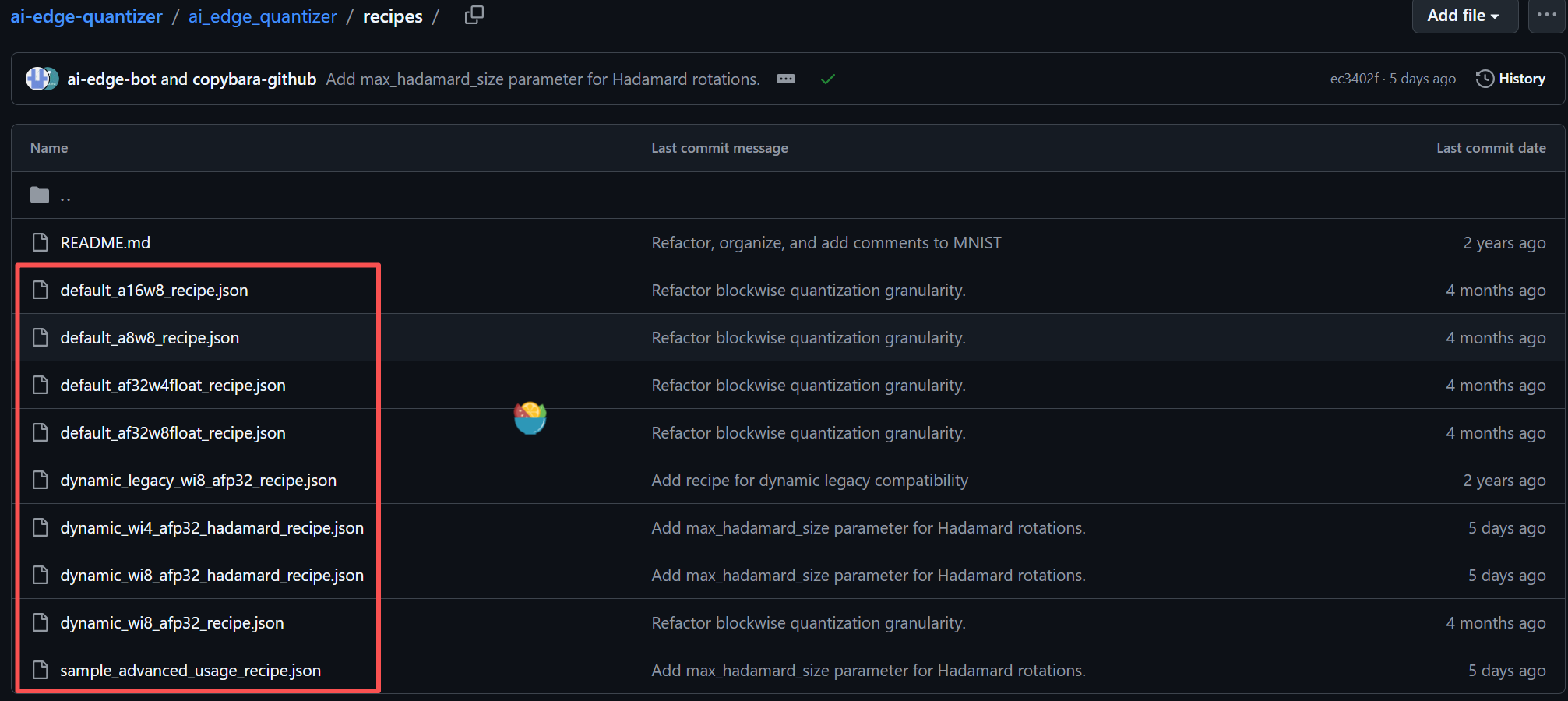
Aside from the wi8-afp32 quantization mode mentioned above, ai-edge-quantizer also supports other quantization modes. As shown in the figure below, Google engineers adopted a very straightforward naming convention to define these quantization modes:
- w = Weight (weight parameters, i.e., fixed parameters learned during model training)
- a = Activation (activation values, i.e., intermediate feature maps flowing through the model during inference)
- i8 / i4 = 8-bit / 4-bit Integer
- fp32 = 32-bit Floating-point
Inference Testing
Now that the LiteRT model file has been successfully converted and quantized, the next step is to perform inference testing on the PC using the LiteRT runtime.
As mentioned above, within the LiteRT ecosystem, the ai-edge-litert package corresponds to the former tflite-runtime, acting as the runtime framework responsible for executing forward inference based on LiteRT model files on Android or PC. Therefore, the workflow for forward inference on a PC generally consists of: loading the model and input image file → data preprocessing → executing inference → running NMS post-processing on inference results → overlaying the NMS-filtered results onto the input image.
import numpy as np
import cv2
import ai_edge_litert.interpreter as litert

def nms(boxes, scores, threshold=0.45):
    if len(boxes) == 0: return []
    x1, y1, x2, y2 = boxes[:, 0], boxes[:, 1], boxes[:, 2], boxes[:, 3]
    areas = (x2 - x1) * (y2 - y1)
    order = scores.argsort()[::-1]
    keep = []
    while order.size > 0:
        i = order[0]
        keep.append(i)
        xx1 = np.maximum(x1[i], x1[order[1:]])
        yy1 = np.maximum(y1[i], y1[order[1:]])
        xx2 = np.minimum(x2[i], x2[order[1:]])
        yy2 = np.minimum(y2[i], y2[order[1:]])
        w = np.maximum(0.0, xx2 - xx1)
        h = np.maximum(0.0, yy2 - yy1)
        inter = w * h
        ovr = inter / (areas[i] + areas[order[1:]] - inter)
        inds = np.where(ovr <= threshold)[0]
        order = order[inds + 1]
    return keep

# 1. Initialize model
interpreter = litert.Interpreter(model_path="yolov8s_dynamic_int8.tflite")
#interpreter = litert.Interpreter(model_path="yolov8s_fixed.tflite")
interpreter.allocate_tensors()
input_idx = interpreter.get_input_details()[0]['index']
output_idx = interpreter.get_output_details()[0]['index']

# 2. Preprocessing
img_raw = cv2.imread("bus.jpg")
h_ori, w_ori = img_raw.shape[:2]
img = cv2.resize(img_raw, (640, 640))
input_data = img.astype(np.float32) / 255.0
input_data = np.transpose(input_data, (2, 0, 1)) # HWC -> CHW
input_data = np.expand_dims(input_data, axis=0)

# 3. Execute inference
interpreter.set_tensor(input_idx, input_data)
interpreter.invoke()
output = interpreter.get_tensor(output_idx)[0] # Shape: (84, 8400)

# 4. Post-processing
output = output.transpose() # (8400, 84)
boxes = output[:, :4]
scores = np.max(output[:, 4:], axis=1)
class_ids = np.argmax(output[:, 4:], axis=1)

# A. Threshold filtering
mask = scores > 0.25
boxes, scores, class_ids = boxes[mask], scores[mask], class_ids[mask]

# B. Coordinate conversion: [cx, cy, w, h] -> [x1, y1, x2, y2]
x_center, y_center, w, h = boxes[:, 0], boxes[:, 1], boxes[:, 2], boxes[:, 3]
x1 = (x_center - w / 2) * (w_ori / 640)
y1 = (y_center - h / 2) * (h_ori / 640)
x2 = (x_center + w / 2) * (w_ori / 640)
y2 = (y_center + h / 2) * (h_ori / 640)
combined_boxes = np.stack([x1, y1, x2, y2], axis=1)

# C. Execute NMS
keep_indices = nms(combined_boxes, scores, threshold=0.45)
final_boxes = combined_boxes[keep_indices]
final_scores = scores[keep_indices]
final_classes = class_ids[keep_indices]

# 5. Visualize and save
for box, score, clsid in zip(final_boxes, final_scores, final_classes):
    x1, y1, x2, y2 = box.astype(int)
    # Draw bounding box
    cv2.rectangle(img_raw, (x1, y1), (x2, y2), (0, 255, 0), 2)
    # Label
    label = f"ID:{clsid} {score:.2f}"
    cv2.putText(img_raw, label, (x1, y1 - 10), cv2.FONT_HERSHEY_SIMPLEX, 0.5, (0, 255, 0), 2)

cv2.imwrite("detection_result.jpg", img_raw)
print(f"Detection completed. Results saved to detection_result.jpg, found {len(keep_indices)} target(s).")
References
- AI Edge Torch: High Performance Inference of PyTorch Models on Mobile Devices - Google Developers Blog
- Convert Models From Pytorch to TFLite With AI Edge Torch | by David Cochard | ailia Tech BLOG (EN) | Medium
- https://github.com/google-ai-edge/litert-torch/blob/main/docs/pytorch_converter/README.md
- https://github.com/google-ai-edge/ai-edge-quantizer