Summary of the YOLO Model Execution Workflow in Android Flutter Projects
- 27 Apr, 2026
Previously, I implemented image object detection in an Android app by calling a YOLO model using Flutter. This article summarizes the complete execution workflow, covering the TFLite export of the YOLO model and its invocation within an Android Flutter project.
Running AI models on Android typically involves exporting the model file to the TFLite format and executing the AI model inference pipeline under the Android TFLite+Interpreter+NCAPI framework. For background knowledge related to this framework, you can refer to the article How to understand the core concept and workflow of TFLite?.
TFLite Export of the YOLO Model
Since the model export implementation in the Ultralytics project is already mature, you can directly export the tflite model file using its export interface within the ultralytics project. Here, we choose to export in half (float16) format:
model_path = "yolov8n.pt"
model = YOLO(model_path)

# Set export parameters based on precision
if PRECISION == "float16":
    model.export(format="tflite", half=True)
    tflite_filename = f"{MODEL_NAME}_float16.tflite"
elif PRECISION == "int8":
    model.export(format="tflite", int8=True)
    tflite_filename = f"{MODEL_NAME}_int8.tflite"
else:  # float32
    model.export(format="tflite")
    tflite_filename = f"{MODEL_NAME}_float32.tflite"
Additionally, to subsequently invoke the above model file for inference in the Flutter project, you also need to create a corresponding label.txt file containing the category name strings corresponding to the model’s detected classes, one per line in sequential order. Since I directly used YOLO’s pretrained pt file in my test—which corresponds to the COCO dataset—the category name strings contained in this label.txt consist roughly of the following 80 classes:
person
bicycle
car
motorcycle
airplane
...
Dependency Management
To add the capability of running AI models to the Android Flutter app, you must first add the relevant dependencies to pubspec.yaml in the project root directory and build.gradle.kts in the android/app directory.
The pubspec.yaml file in a Flutter project serves as its metadata center and dependency manager. It primarily contains: basic project configuration information, production environment dependency libraries, development/test stage dependency libraries, resources, and assets. For the dependencies mentioned above, every time the project is built, flutter pub get is automatically invoked to download the source code of the specified dependency libraries from pub.dev to the local machine.
This project requires running the YOLO model to detect images from the phone’s camera and local photos, so the relevant settings in pubspec.yaml include:
dependencies:
  flutter:
    sdk: flutter

  camera: ^0.11.1 # Responsible for capturing raw audio/video streams (YUV data).
  image_picker: ^1.2.1 # Used to select images from the device gallery or take photos.
  flutter_vision: ^2.0.0 # An integrated vision framework that implicitly depends on the TFLite native library (i.e., the C++ layer Interpreter).
  flutter_riverpod: ^3.3.1 # Responsible for state management.
  flutter_hooks: ^0.21.3+1 # Responsible for state management.
  wakelock_plus: ^1.5.1 # Prevents the phone screen from automatically turning off while running AI models.

flutter:
  uses-material-design: true
  assets:
    - assets/models/ # Place the model's tflite file in this directory of the project.
Therefore, for running the YOLO model in an Android project, the most critical part of the above configuration file is the inclusion of the flutter_vision plugin. This plugin has a built-in TensorFlow Lite C SDK and includes related processing for specific models like YOLO, such as input/output ByteBuffer, tensor shape conversion, and NMS (Non-Maximum Suppression). For the application layer, it only needs to call the vision.loadYoloModel() interface, and it can create the TFLite Interpreter on the Android native layer and execute inference tasks.
Complete Inference Workflow of the Model in Flutter
Similar to the complete inference workflows of other edge models, invoking the YOLO model to execute inference tasks in an Android Flutter project also comprises three stages: model loading, forward inference, and post-processing.
Model Loading
The overall workflow for loading an AI model based on the flutter_vision plugin is as follows:
import 'package:flutter_vision/flutter_vision.dart';

			final FlutterVision _vision = FlutterVision();

			// Call loadYoloModel to create an asynchronous task for model loading
      final loadFuture = _vision.loadYoloModel(
        modelPath: "assets/models/yolov8n_fp16.tflite", // Model file
        labels: "assets/models/label.txt",  // Label file
        modelVersion: "yolov8", // Model version identifier; must be set correctly so the plugin can properly parse and process model outputs
        numThreads: 1,
        useGpu: true, // Enable GPU
      );

      // Wait for the above model loading task to complete
      await loadFuture;
The overall model loading process is straightforward: call the loadYoloModel interface of flutter_vision to create an asynchronous model loading task, pass parameters such as the model file and label file, and then wait for this asynchronous task to finish executing.
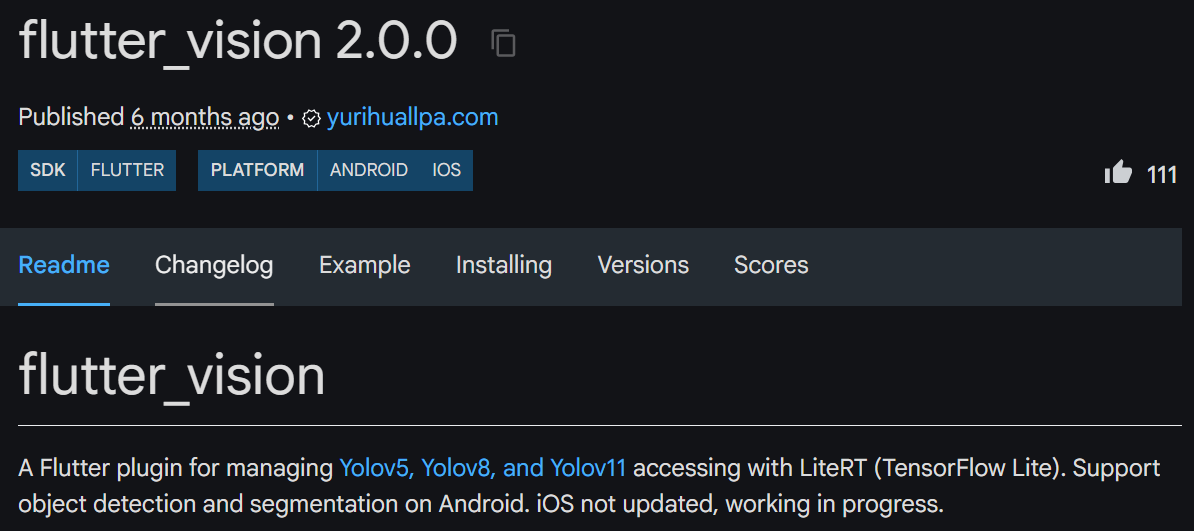
It is important to note that the flutter_vision plugin only supports YOLOv5, YOLOv8, and YOLOv11 models exported directly in tflite format via the export interface of the ultralytics project, and the model file specified in the parameters along with the modelVersion parameter must be set correctly; otherwise, the subsequent post-processing workflow will fail:
So, what if we want to run other models in an Android app? In that case, we can only use the tflite_v2 plugin, the flutter_tflite plugin, or the underlying TensorFlow Lite API.
Forward Inference and Post-Processing
The forward inference process of the flutter_vision plugin mainly involves calling its yoloOnFrame (for camera images) and yoloOnImage (for local images) interfaces.
List<Map<String, dynamic>> results = [];
      if (input is CameraImage) {
        results = await _vision.yoloOnFrame(  // Camera image
          bytesList: input.planes.map((plane) => plane.bytes).toList(),
          imageHeight: input.height,
          imageWidth: input.width,
          iouThreshold: 0.4,
          confThreshold: 0.35,
          classThreshold: 0.5,
        );
      } else if (input is Uint8List) {  // Local image
        results = await _vision.yoloOnImage(
          bytesList: input,
          imageHeight: 640,
          imageWidth: 640,
          iouThreshold: 0.4,
          confThreshold: 0.3,
          classThreshold: 0.5,
        );
      }
The execution of the above inference interfaces already incorporates the post-processing workflows for different YOLO versions, so their output is an array of <String, dynamic>. Each item in this array corresponds to the category, coordinates, and confidence of a final detection box, as shown below:
List<Map<String, dynamic>> results = [
  {
    "tag": "person",           // String: Detected class label
    "box": [x1, y1, x2, y2, confidence]  // List<double>: Detection box coordinates and confidence
  },
  {
    "tag": "car",
    "box": [x1, y1, x2, y2, confidence]
  },
  // ... more detection results
]
After obtaining this array at the application layer, you can parse its contents and draw bounding boxes on the image for labeling. Because the yoloOnFrame and yoloOnImage interfaces already include post-processing steps such as NMS, there is no need to perform post-processing again at the application layer.