A Comprehensive Guide to Custom Training, Testing, and Model Export for the YOLOv5 Model
- 28 Aug, 2025
This article provides a detailed, end-to-end summary of preprocessing user-defined training datasets and annotations into the YOLO format, followed by training, testing, and ONNX exporting of the YOLOv5 model.
Downloading and Testing the YOLOv5 Model
To perform custom training and deployment with the YOLOv5 model, the first step is, of course, to download the YOLOv5 source code. Search for YOLOv5 on GitHub to find the Ultralytics source code repository: ultralytics/yolov5: YOLOv5 🚀 in PyTorch > ONNX > CoreML > TFLite.
As you can see, although YOLOv5 is a relatively early model, its development and maintenance have never stopped and it continues to receive updates to this day:
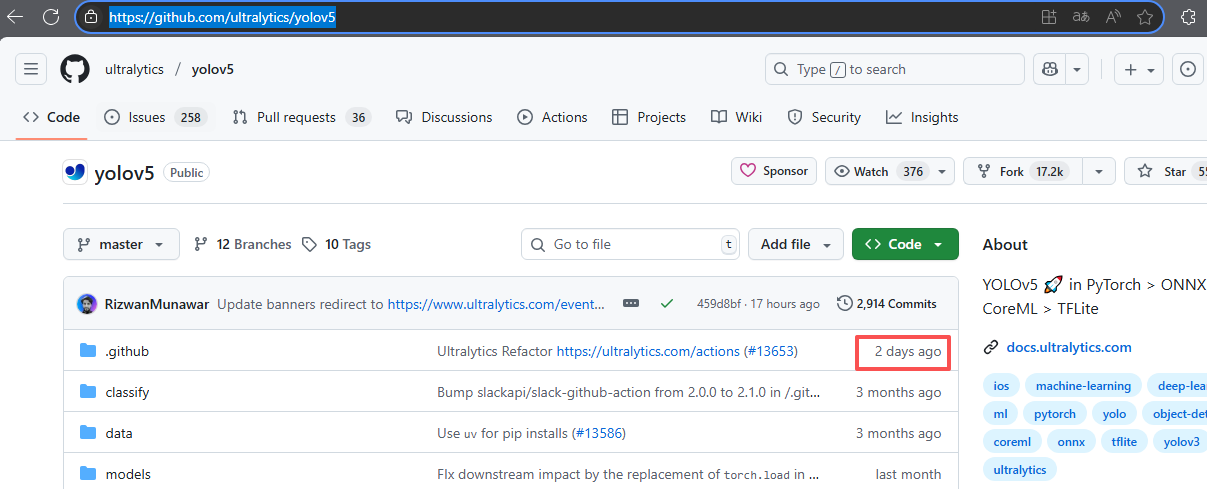
Use git clone or directly download the latest version of the code locally via HTTPS.
Once downloaded, you can run some initial tests using the scripts included with a default pre-trained model. For basic testing and usage of the YOLOv5 model, three primary script files are mainly used: train.py (training), detect.py (inference on new sample data), and export.py (model exporting).
Main arguments for train.py:
--weights: Path to the initial weights file, defaults toyolov5s.pt(the official parameter file pre-trained on the COCO dataset, which is automatically downloaded upon first use), used to load the pre-trained model.--cfg: Path to the model configuration file (model.yaml), which defines the network architecture. Default model configuration files are located in themodelsdirectory.--data: Path to the training dataset configuration file. Default dataset configuration files are located in thedatadirectory.--batch-size: Number of samples per mini-batch during training, typically 8 or 16.--epochs: Number of training epochs.--device: Specifies the CUDA device, such as0,0,1,2,3, orcpu.
Based on the settings of the --weights and --cfg parameters above, model training can be categorized into the following scenarios:
- Training based on official YOLO pre-trained model parameters: Simply pass the
.ptfile of the pre-trained model via the--weightsparameter, which already contains the model configuration information. - Training a YOLO model from scratch: Leave the
--weightsparameter as an empty string and provide the--cfgparameter to set up the model configuration. - If both
--cfgand--weightsparameters are provided in the command, the model structure defined by--cfgwill take precedence, and it will attempt to load the weight parameters from--weights(if the structures match).
Main arguments for detect.py:
--weights: Specifies the path to the model weights file, defaulting toyolov5s.pt.--source: Input source path for inference data, which can be a single image, video file, directory, URL (rtsp, rtmp, etc.), webcam index (0), screen, etc.--device: Execution device, can be specified ascpuor a GPU index (e.g.,0,1), defaulting to automatic selection.--classes: Specifies a list of class indices to detect, such as--classes 0 2 3, defaulting toNone(detect all classes).--project: Project directory to save inference results, defaulting toruns/detect.--name: Experiment name (used to create subdirectories), defaulting toexp.--conf-thres: Confidence threshold. Results are output and marked only if the recognition confidence is greater than this threshold.
Main arguments for export.py:
--data: Path to the dataset configuration YAML file used during model training, defaulting todata/coco128.yaml, used to provide metadata such as class information.--weights: Path to the model weights file to be exported.--batch-size: Batch size, defaulting to1.--include: Specifies the list of model formats to export, defaulting totorchscript. Supported formats include:torchscript: PyTorch’s TorchScript formatonnx: ONNX formatopenvino: Intel OpenVINO formatengine: NVIDIA TensorRT formatcoreml: Apple CoreML formatsaved_model: TensorFlow SavedModel formatpb: TensorFlow GraphDef formattflite: TensorFlow Lite formatedgetpu: TensorFlow Edge TPU formattfjs: TensorFlow.js formatpaddle: PaddlePaddle format
The data subdirectory within the YOLOv5 source code directory contains configuration files for several standard image datasets. You can first test the YOLOv5 model training pipeline using these standard datasets and their configuration files (the coco128 dataset is used here):
# Train from scratch
python train.py --model models/yolov5s --weights '' --data data/coco128.yaml --batch-size 16

# Train based on the pre-trained model yolov5s.pt
python train.py --weights yolov5s.pt --data data/coco128.yaml --batch-size 16
Every time a training session is executed using the above scripts, an
expdirectory is created underruns/train, containing various intermediate files generated during training. Once training is complete, the generated weight parameters file will beweights/best.ptwithin this directory.
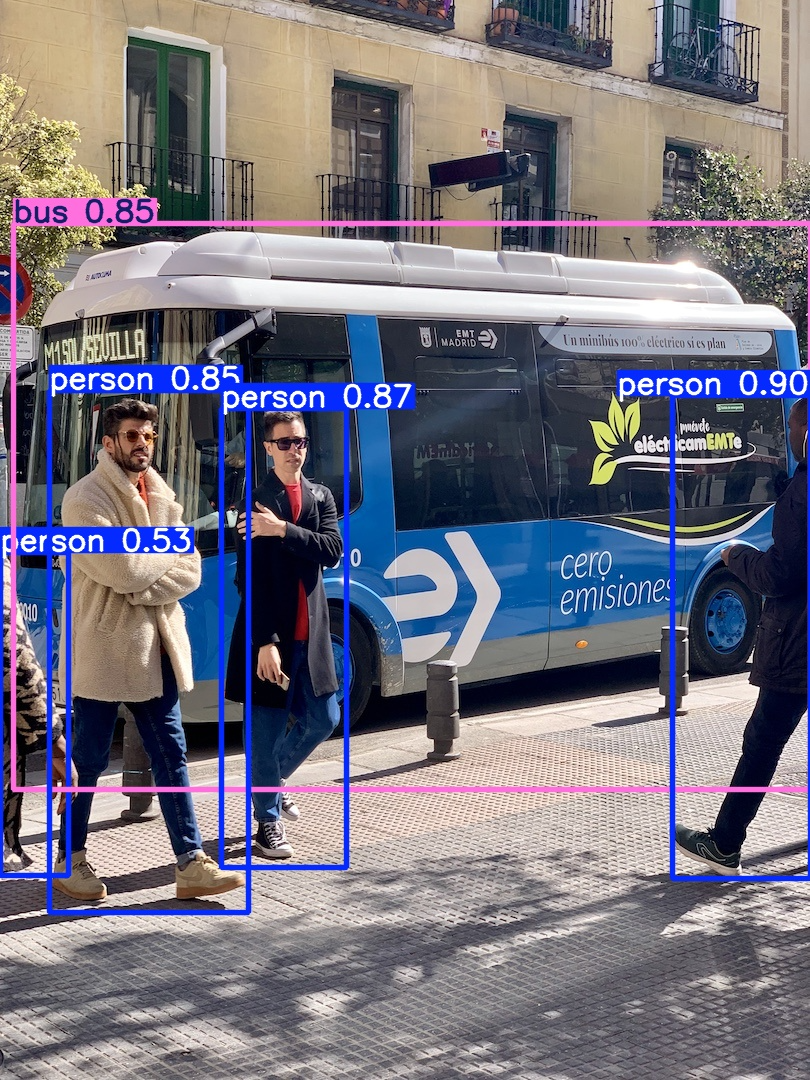
Similarly, you can use the following command to run inference tests with detect.py on the sample images included in the YOLOv5 source code:
python.exe detect.py --source .\data\images --weight .\yolov5s.pt --project .\runs\detect\ --conf-thres 0.5The above script performs inference on all images under data/images, and the generated annotated images are saved in the runs/detect/exp directory.
Preparing the Training Dataset
We have previously conducted a quick test on the basic usage of the YOLO model. Next comes preparing a custom dataset for model training.
This article uses face mask detection as a learning case. Since there are a large number of such public datasets available online, you can start by searching for public datasets that meet your training requirements.
- Websites like Kaggle, Roboflow, and Hugging Face offer a massive collection of public datasets, which you can search according to your needs.
This article uses the Face Mask Detection dataset from Kaggle to train the YOLOv5 model: Face Mask Detection. This dataset detects whether people in images are wearing masks. The entire dataset contains a total of 853 images with three detection categories: without mask, with mask, and mask worn incorrectly. The annotation format is Pascal VOC.
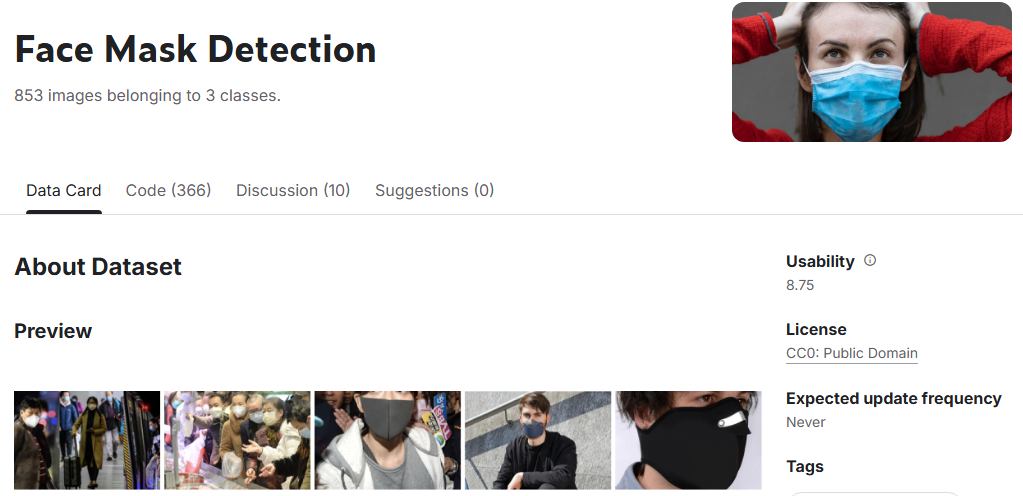
After downloading the Face Mask Detection dataset from Kaggle, you first need to preprocess its images and annotation information into the format required by the YOLO model. For the Face Mask Detection dataset, the required preprocessing steps include:
- Converting the Pascal VOC annotation format used by the dataset into the YOLO format.
- Splitting the images and annotation sets into training, validation, and test sets with an 85:10:5 ratio.
- Saving them into three subdirectories (
train,valid, andtest) according to the directory structure required for YOLO model training. - Preparing the dataset configuration description file
FaceMask.yamlfor YOLO training.
Pascal VOC is a commonly used annotation format for object detection tasks, which differs significantly from the annotation format required for YOLO model training. Therefore, I specifically wrote a script named voc_to_yolo.py to implement steps 1-3 of the above preprocessing pipeline: annotation format conversion, data splitting, and YOLO training directory structure setup. Using this script allows you to convert from a Pascal VOC dataset to a YOLO training dataset:
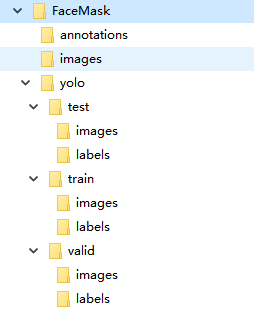
python voc_to_yolo.py --voc_dir ..\datasets\FaceMask\annotations\ --images_dir ..\datasets\FaceMask\images\ --output_dir ..\datasets\FaceMask\yolo\ --class_names 'without_mask,with_mask,mask_weared_incorrect'The diagram below illustrates the directory structure of the Face Mask dataset before and after conversion.
- In the original raw dataset before conversion, all images are located in the
imagesdirectory, and all Pascal VOC formatted annotations are located in theannotationsdirectory. - The complete YOLO dataset after conversion is located in the
yolodirectory, which contains three subdirectories (test,train, andvalid) corresponding to the test, train, and validation datasets respectively, each containing subdirectories for image files and YOLO annotation files.
Based on the prepared YOLO-formatted training dataset, compile the corresponding dataset description configuration file FaceMask.yaml as follows. This file will be used subsequently during training to specify the training dataset path, class names, and the number of detection categories.
path: ../datasets/FaceMask/yolo
train: train/images
val: valid/images

nc: 3
names:
  0: 'no-mask'
  1: 'mask'
  2: 'incorrect'
Model Training and Testing
Train the model on the YOLOv5 pre-trained weights using the preprocessed dataset above:
python.exe train.py --data FaceMask.yaml --weights yolov5s.pt --batch-size 8 --epochs 50Training on a CPU takes a relatively long time. With less than 1,000 images, it took over a day to train on my ThinkPad X260 laptop. Once training is complete, the generated model parameter file is best.pt located in the runs\train\exp9\weights directory.
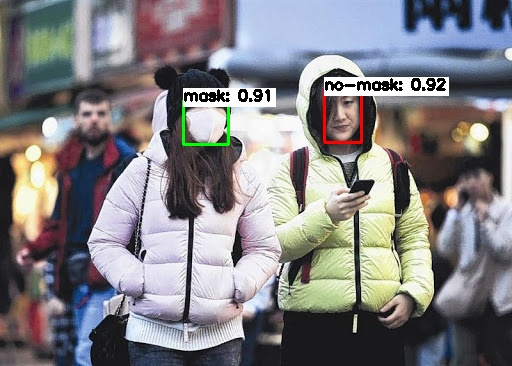
Test the test dataset split in the previous phase using the model parameter file generated from the training above:
python.exe detect.py --source ..\datasets\FaceMask\yolo\test\images\ --weight .\runs\train\exp9\weights\best.pt --project .\runs\detect\ --conf-thres 0.5The above script will perform inference on all images in the test dataset specified by datasets\FaceMask\yolo\test\images\. The inference results will be saved in a newly created exp directory under runs/detect, with recognition results having a confidence greater than 0.5 boxed and labeled to indicate whether masks are worn correctly.
Exporting the Model to ONNX
Next, you can use export.py in the YOLOv5 source code directory to export the best.pt parameter weights file trained in the previous step into a standard ONNX model file for deployment in standardized environments such as ONNX Runtime:
python.exe export.py --weights .\runs\train\exp9\weights\best.pt --data .\data\FaceMask.yaml --device cpu --include onnxOnce the above script executes, a best.onnx file will be generated in the same directory as best.pt. This is the ONNX file exported from the model.