WiFi Over-the-Air Packet Capture Environment Based on Wireshark + Acrylic WiFi Sniffer
- 18 Jan, 2021
Prerequisites:
- Install Wireshark and Acrylic WiFi Sniffer software.
- A wireless network adapter that supports Monitor mode.
- Pre-knowledge of the AP channel to be captured.
- (If decryption of data above the data link layer is required) Pre-knowledge of the AP’s SSID and password to be captured.
Installing Wireshark and Acrylic WiFi Sniffer
- Download and install the latest version of Wireshark from www.wireshark.org.
- Acrylic WiFi Sniffer
- Download link: https://www.acrylicwifi.com/en/downloads-free-license-wifi-wireless-network-software-tools/download-acrylic-wi-fi-sniffer/#
- The free-licensed Acrylic WiFi Sniffer software limits each capture session to 1 minute, with a 5-minute cooldown period before the next capture can be initiated. To remove these restrictions, a license purchase is required: a 1-year software usage authorization costs 220.
- After installation, open the software. Acrylic WiFi Sniffer will begin scanning for wireless network adapters connected to the computer, detect if they support Monitor mode, and list those that do:
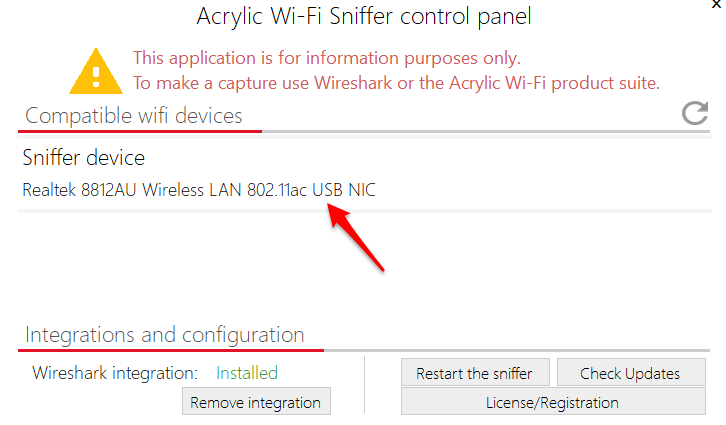
- If the “Compatible WiFi Devices” section shows “No WiFi devices found”, you will need to find another wireless network adapter that supports Monitor mode.
Wireless Network Adapters Supported by Acrylic WiFi Sniffer
- You can check the compatibility of wireless network adapters with Acrylic WiFi Sniffer at the following link: https://www.acrylicwifi.com/en/wlan-wifi-wireless-network-software-tools/sniffer-wifi-for-windows/acrylic-wi-fi-sniffer-requirements-and-compatibility/
- In practice, the link above only lists some of the supported adapters. For example, it’s confirmed that Netcore’s NW392 USB wireless network adapter is supported.
Scanning the AP Channel Before Capture
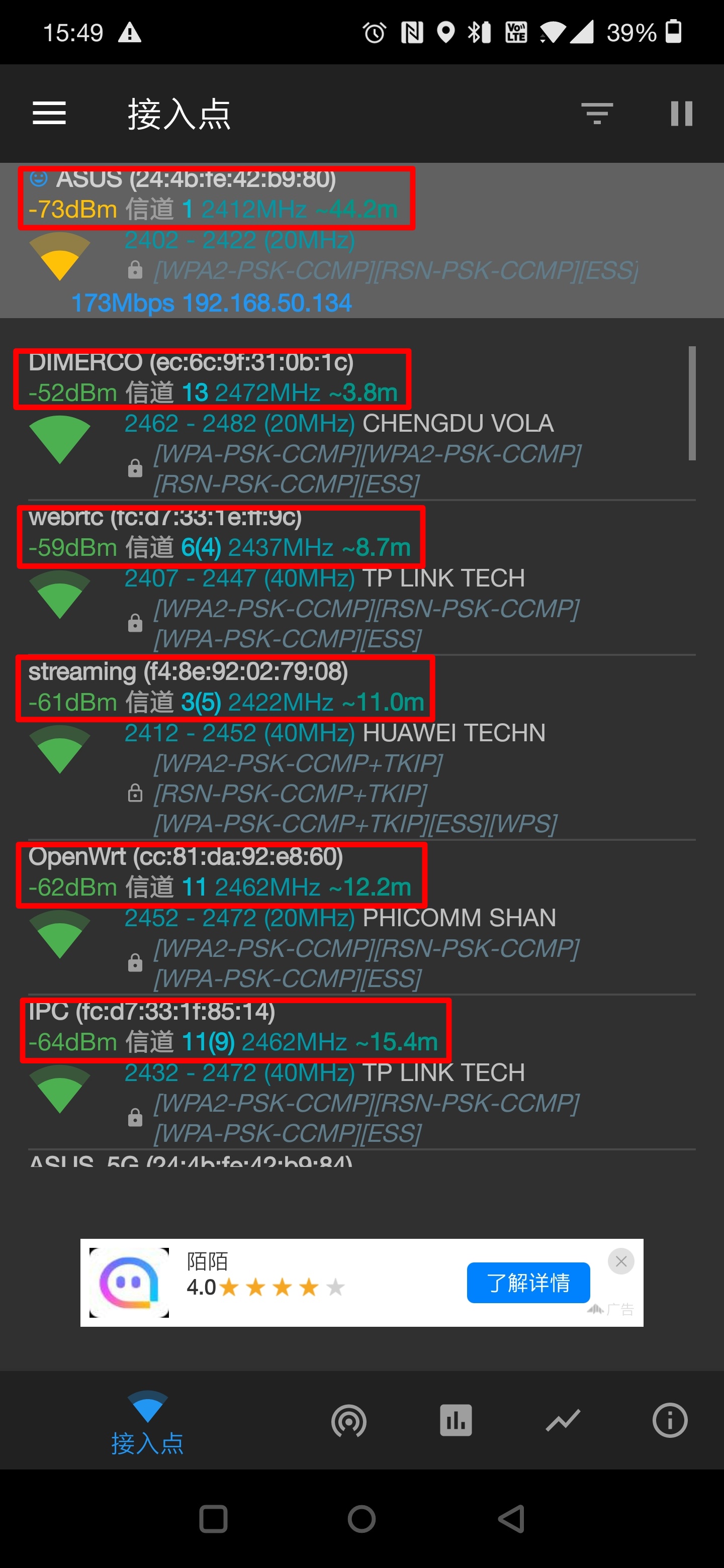
You can install an AP scanning application on your phone to survey the surrounding APs, such as “WiFi Analyzer Assistant” on the Android platform:
Capturing WiFi Over-the-Air Packets Using Wireshark
After opening Wireshark, select the wireless network adapter detected by Acrylic WiFi Sniffer from the Wireshark capture interface list:
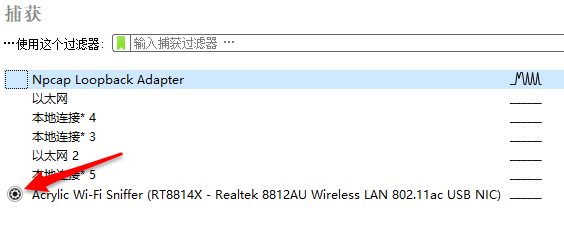
Click the gear icon next to it to select the correct WiFi channel. After confirming “Start”, the WiFi over-the-air packet capture will begin:
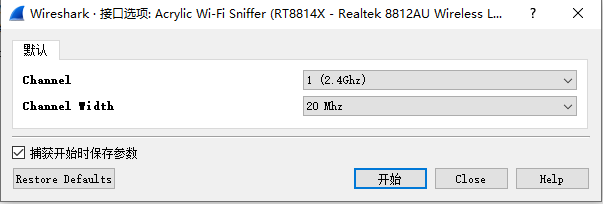
- In the “Channel” field, select the AP channel scanned by the WiFi channel scanning tool.
Decrypting WiFi Over-the-Air Packets
- By default, packets captured in the aforementioned WiFi over-the-air environment will have the Protocol set to 802.11. Consequently, only the data link layer header content is visible, while the preceding portions are encrypted as QoS Data. This prevents us from knowing the specific content of upper-layer protocols, ports, and other information during packet analysis.
- This is because WiFi packets transmitted over the air are encrypted. The encryption key is negotiated between the AP and the STA during the Association process. Subsequent communications use this negotiated key to encrypt data above the data link layer, and only the receiver of the packet possesses the correct key for decryption.
- To decrypt WiFi over-the-air captured data—that is, to view protocols, data, ports, and other content above the 802.11 data link layer—the following are required:
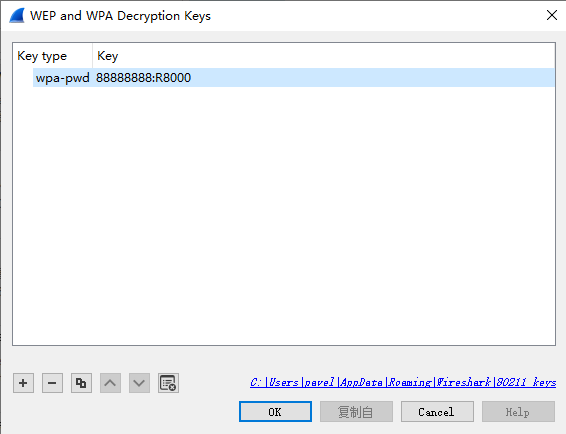
- Pre-knowledge of the capture AP’s SSID and Key, and configure them in Wireshark:
Edit -> Preferences -> Protocols -> IEEE802.11 -> Edit, selectwpa-pwd, and enter the key asKEY:SSID. For example, if the SSID is R8000 and the Key is 88888888:
- Pre-knowledge of the capture AP’s SSID and Key, and configure them in Wireshark:
- Ability to capture a complete STA-to-AP Association process, which is necessary to obtain the encryption key negotiated during that connection.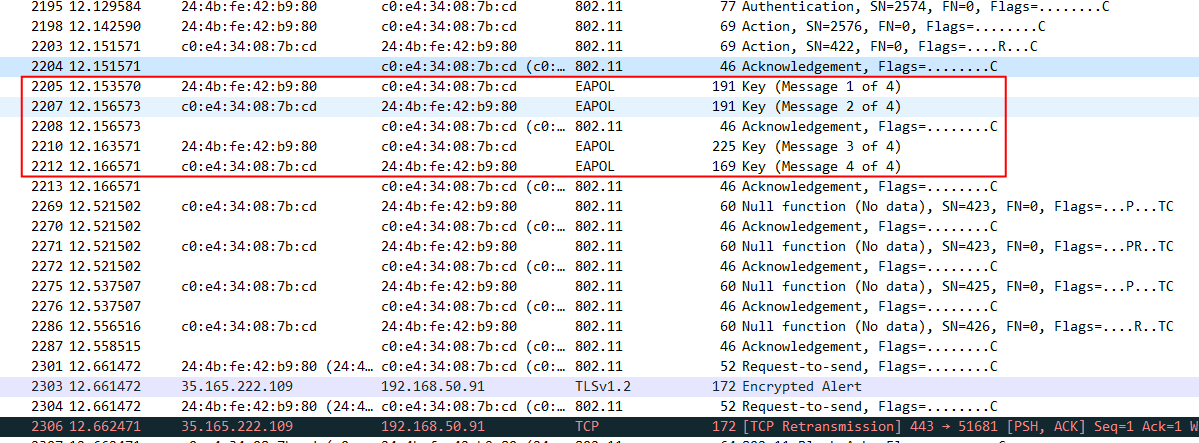
-   The most crucial step is to obtain all four keys from the complete key negotiation process mentioned above. Only when all four keys are captured can subsequent communication packets between the STA and AP be correctly decrypted.
-   Based on the capture process of the complete Association procedure described above, to successfully decrypt subsequent communication packets, the following sequence must be captured in Wireshark:
    -   STA sends an Authentication request to the AP and receives an Acknowledge response.
    -   AP sends an Authentication request to the STA and receives an Acknowledge response.
    -   STA sends an Association Request to the AP and receives an Acknowledge response.
    -   AP sends an Association Response to the STA and receives an Acknowledge response.
    -   AP sends Key Message 1 to the STA and receives an Acknowledge response.
    -   STA sends Key Message 2 to the AP and receives an Acknowledge response.
    -   AP sends Key Message 3 to the STA and receives an Acknowledge response.
    -   STA sends Key Message 4 to the AP and receives an Acknowledge response.
- However, in actual packet capture tests, one of these key messages might be missed, which would lead to decryption failure.- If decryption fails, you need to check the following:
- Have the correct SSID and Key information been entered in the 802.11 packet decryption settings?
- Has a complete Association process been captured, meaning the full Key1-Key4 sequence is visible in the captured data?
- If decryption still fails, try modifying the “Assume Packets have FCS” and “Ignore the protection bit” settings in the 802.11 packet decryption configuration.